


How to Translate Videos with AI Using SubEasy
Translating videos into multiple languages is one of the fastest ways to reach a global audience. Whether you're creating YouTube videos, online courses, podcasts, interviews, or marketing content, high-quality subtitles make your content more accessible and engaging.
SubEasy streamlines the entire video translation workflow. From AI-powered transcription and translation to subtitle editing and export, everything can be completed within a single workspace.
This guide walks you through the complete translation process:
- Create a translation project
- Upload your video or audio file
- Configure translation settings
- Review and edit translated subtitles
- Export subtitle files or translated videos
1. Create a New Translation Project
Before translating your content, start by creating a new translation project from your SubEasy workspace.
After logging in, you can access AI Translate in two ways:
- Click AI Translate from the workflow section in the center of your workspace.
- Select AI Translate from the left sidebar.
You can also drag and drop your media file directly onto the AI Translate button to quickly start a new translation project.
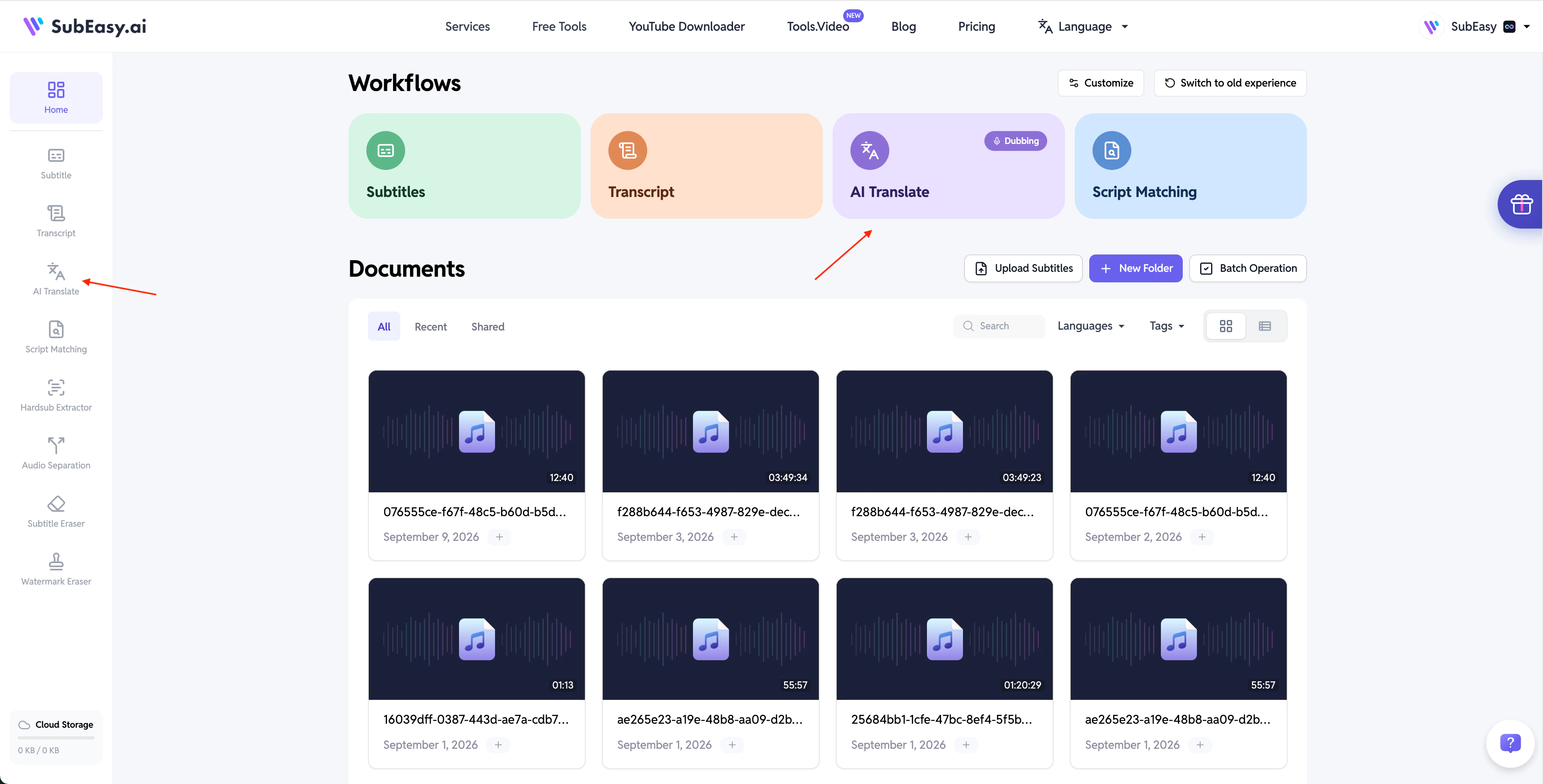
Starting your project from the workspace allows you to manage all translation projects in one place and continue editing or exporting them whenever needed.
2. Upload Your Video or Audio File
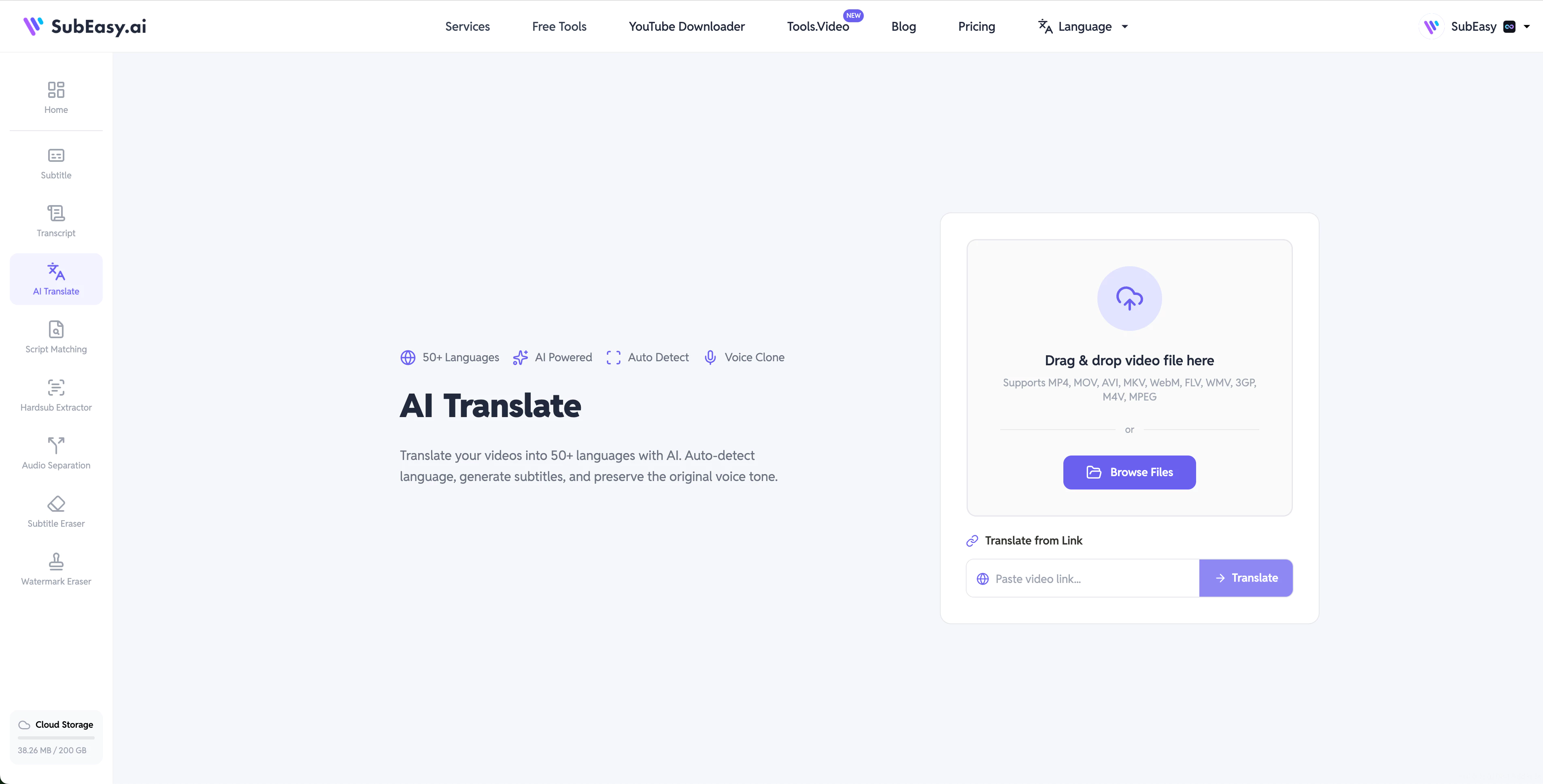
After entering the AI Translate page, upload the media file you want to translate.
Click Browse File to select a video or audio file from your device.
SubEasy also supports URL-based processing. If your video is hosted on platforms such as YouTube, simply paste the video URL to begin the translation workflow.
SubEasy is suitable for a wide range of content, including:
- YouTube videos
- Podcasts
- Interviews
- Online courses
- Educational content
- Social media videos
For the best translation quality, make sure your source audio is clear before starting.
3. Configure Translation Settings
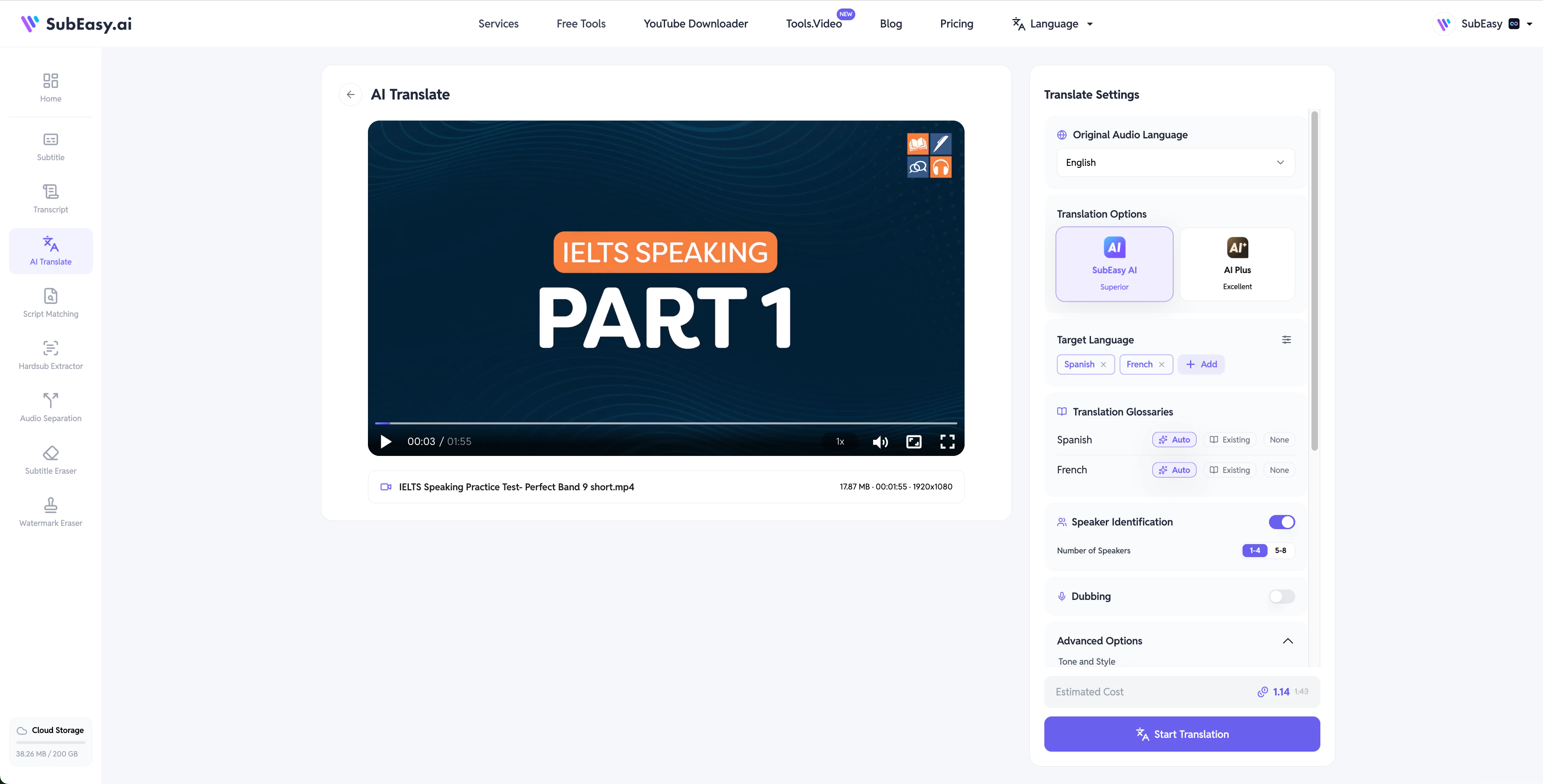
Before generating translated subtitles, configure your translation settings according to your content and target audience.
These options help you balance translation quality, writing style, readability, and multilingual output.
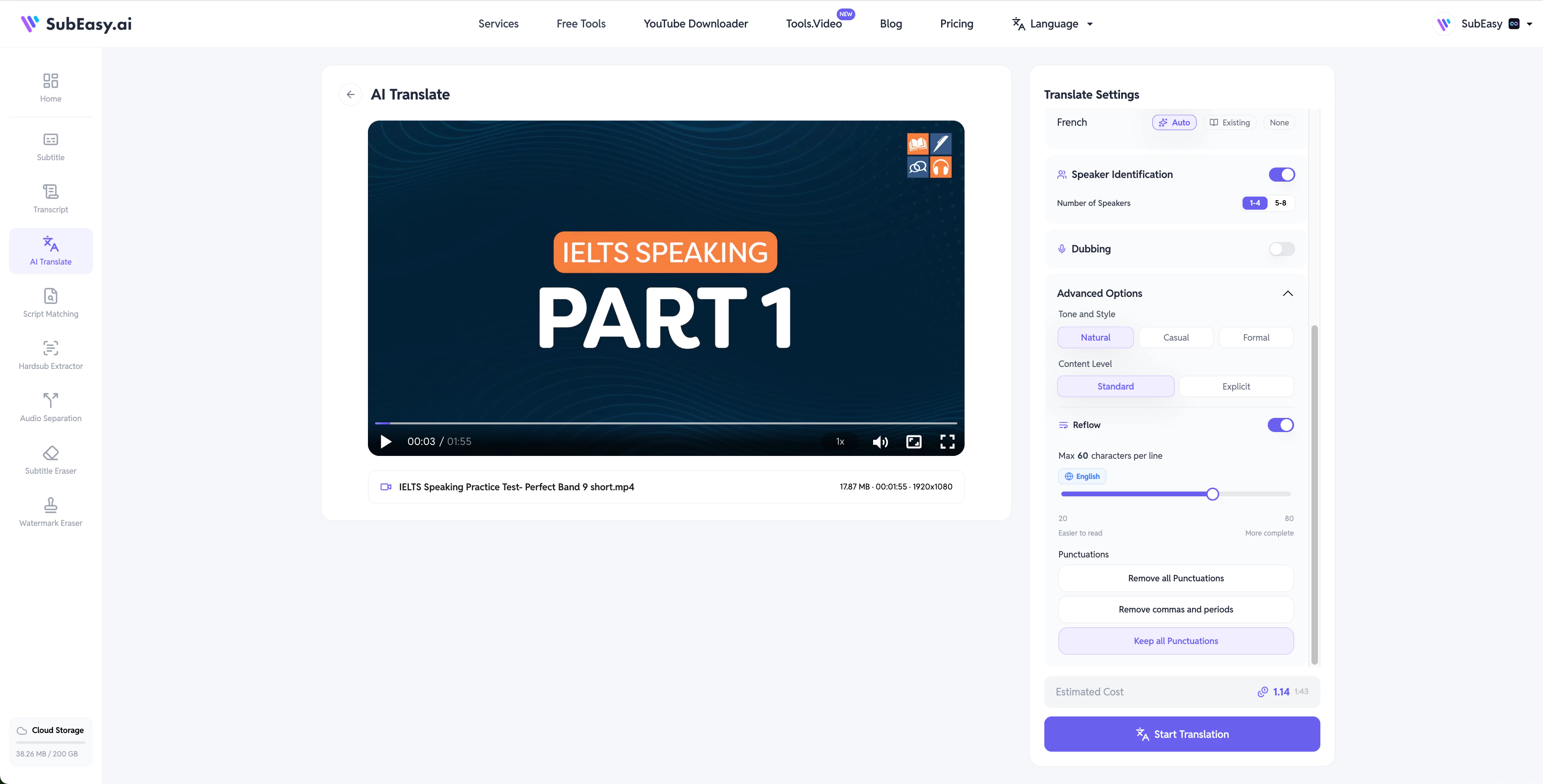
Select Original Audio Language
Choose the language that matches the original spoken language in your video.
Selecting the correct source language helps SubEasy better understand the speech and produce more accurate translations.
For Cantonese content, SubEasy supports both Cantonese Spoken output (e.g., 「唔係」) and Cantonese Written output (e.g., 「不是」), allowing subtitles to match different audience expectations.
Translation Options
SubEasy provides two AI translation models to meet different quality requirements.
SubEasy AI
Provides excellent translation quality for most content.
Recommended for:
- YouTube videos
- Podcasts
- Online courses
- General-purpose content
For most translation tasks, SubEasy AI is the recommended option.
AI Plus
Provides translation quality comparable to professional human translation.
AI Plus delivers more natural wording and better contextual understanding, while consuming more credits.
Recommended for:
- Business presentations
- Marketing videos
- Professional educational content
- High-quality multilingual publishing
Target Language
Choose the language you want to translate your content into.
SubEasy supports translating into multiple target languages simultaneously, allowing you to generate multilingual subtitles in a single workflow.
This is especially useful if you publish content for audiences in multiple regions.
Enable Speaker Identification
For videos or audio files with multiple speakers, you can enable Speaker Identification to automatically label different speakers in your transcript.
This feature is especially useful for:
- Podcasts
- Interviews
- Meetings
- Panel discussions
After translation, SubEasy identifies and separates different speakers, making multilingual conversations much easier to review and edit.
Dubbing
If you'd like to generate AI voiceovers for your translated content, you can enable Dubbing.
SubEasy supports AI dubbing for translated videos, allowing you to create multilingual videos with both translated subtitles and translated speech.
For a complete walkthrough, please refer to our dedicated AI Dubbing Guide.
Tone and Style
SubEasy provides three translation styles to better match different types of content and audiences.
Natural
Recommended for most videos.
Produces neutral translations that stay faithful to the original meaning while preserving the speaker's tone.
Best for:
- Interviews
- Documentaries
- Business content
- General-purpose videos
Colloquial
Creates more conversational translations using everyday language and light slang where appropriate.
Best for:
- Vlogs
- Live streams
- Social media videos
- Casual conversations
Formal
Produces more polished and professional translations using formal wording and tone.
Best for:
- Business presentations
- Corporate communications
- Academic content
- Official documents
- Professional training materials
If you're unsure which style to choose, Natural is recommended for most translation tasks and provides the best balance between accuracy and readability.
Content Level
For most content, we recommend selecting Standard.
If your video contains explicit or age-restricted language, you can choose Explicit.
Selecting Explicit may slightly reduce translation quality, but it helps ensure that content containing sensitive language can be translated successfully.
Reflow
Enable Reflow to automatically rearrange transcription results into more natural and readable subtitle segments before translation.
Rather than keeping long sentences in a single subtitle, Reflow intelligently reorganizes the transcription into subtitle-friendly segments, creating a better foundation for the translation process.
Max Characters per Line
You can set the maximum number of characters per subtitle line before starting the translation.
SubEasy uses this setting during Reflow to automatically rearrange transcription results into subtitle segments that match your preferred line length.
This helps create subtitles that are easier to read before they are translated.
Punctuation Settings
Choose whether punctuation marks should be kept or removed based on your preference.
This allows you to customize subtitle formatting according to your content style and viewing experience.
After completing your settings, click Start Translation to generate translated subtitles.
4. Review and Edit Your Translation
Once translation is complete, SubEasy automatically generates editable translated subtitles synchronized with your video.
The subtitle editor allows you to review translated content, adjust timing, and make any necessary changes before exporting.
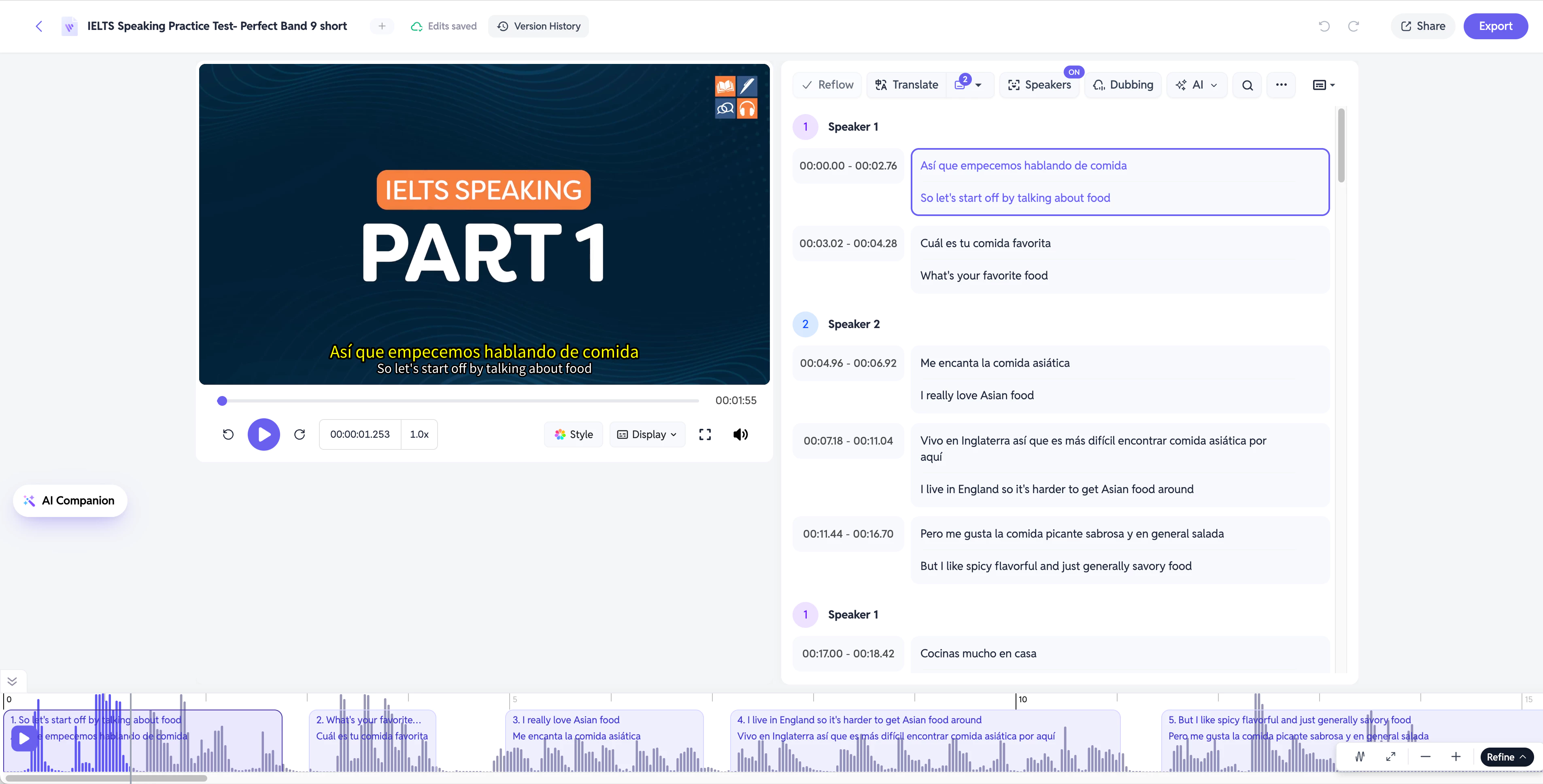
SubEasy provides an all-in-one editing workspace where you can preview your video while refining translated subtitles.
Switch Between Multiple Languages
If you translated your video into multiple target languages, you can easily switch between them using the language selector next to the Translate button.
This allows you to review and edit each translated version individually without creating separate projects.
Edit Translated Subtitles
Translated subtitles can be edited directly in the subtitle editing panel.
If you notice wording that you'd like to improve, simply click the subtitle text and make your changes.
This is useful for:
- Refining translated expressions;
- Adjusting wording for different audiences;
- Correcting names, brands, or technical terms.
All edits remain synchronized with your video timeline.
Adjust Subtitle Timing
Accurate timing is essential for creating natural subtitles.
SubEasy provides two ways to fine-tune subtitle timing.
Edit Timing in the Subtitle Panel
You can directly modify the timestamps of each subtitle segment within the editing panel.
Adjust the start and end time to better match the speaker's voice.
Adjust Timing Using the Waveform Timeline
For more precise synchronization, you can also adjust subtitle timing directly from the waveform timeline at the bottom of the editor.
By dragging subtitle segments along the waveform, you can quickly align subtitles with the corresponding speech.
This is especially helpful when:
- Speakers pause naturally between sentences;
- Generated timing requires minor adjustments;
- You want subtitles to appear exactly when words are spoken.
5. Customize Subtitle Appearance
After reviewing your translated subtitles, you can customize how they appear in the final video.
Open the Style menu to adjust subtitle appearance according to your content and branding.
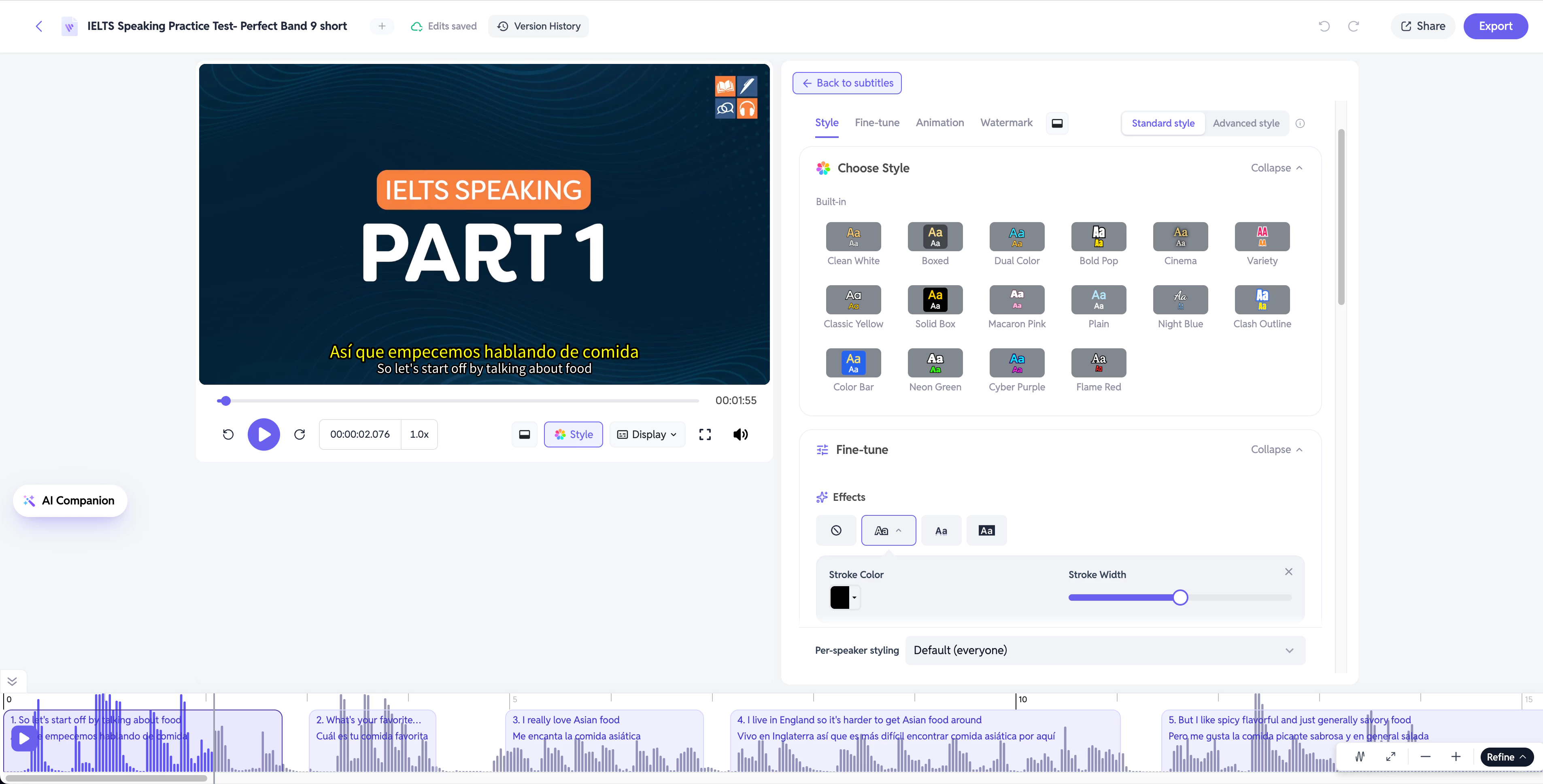
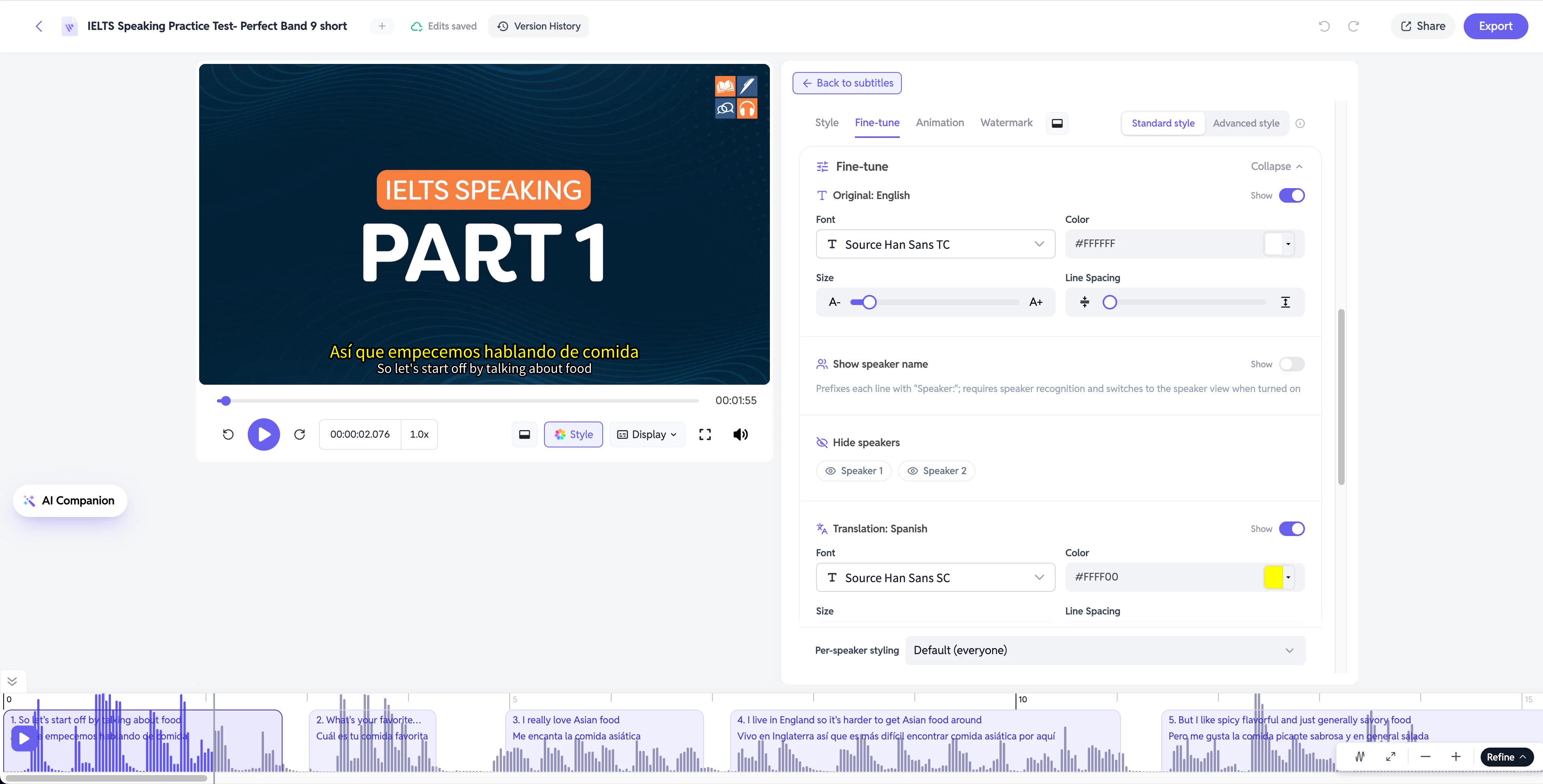
If your project contains multiple translated languages, you can configure different fonts, colors, and styles for each language independently.
This makes it easy to create professional bilingual or multilingual subtitles with clear visual distinction between languages.
6. Export Your Translation
Once you're satisfied with the translated subtitles, click Export to choose how you'd like to save your project.
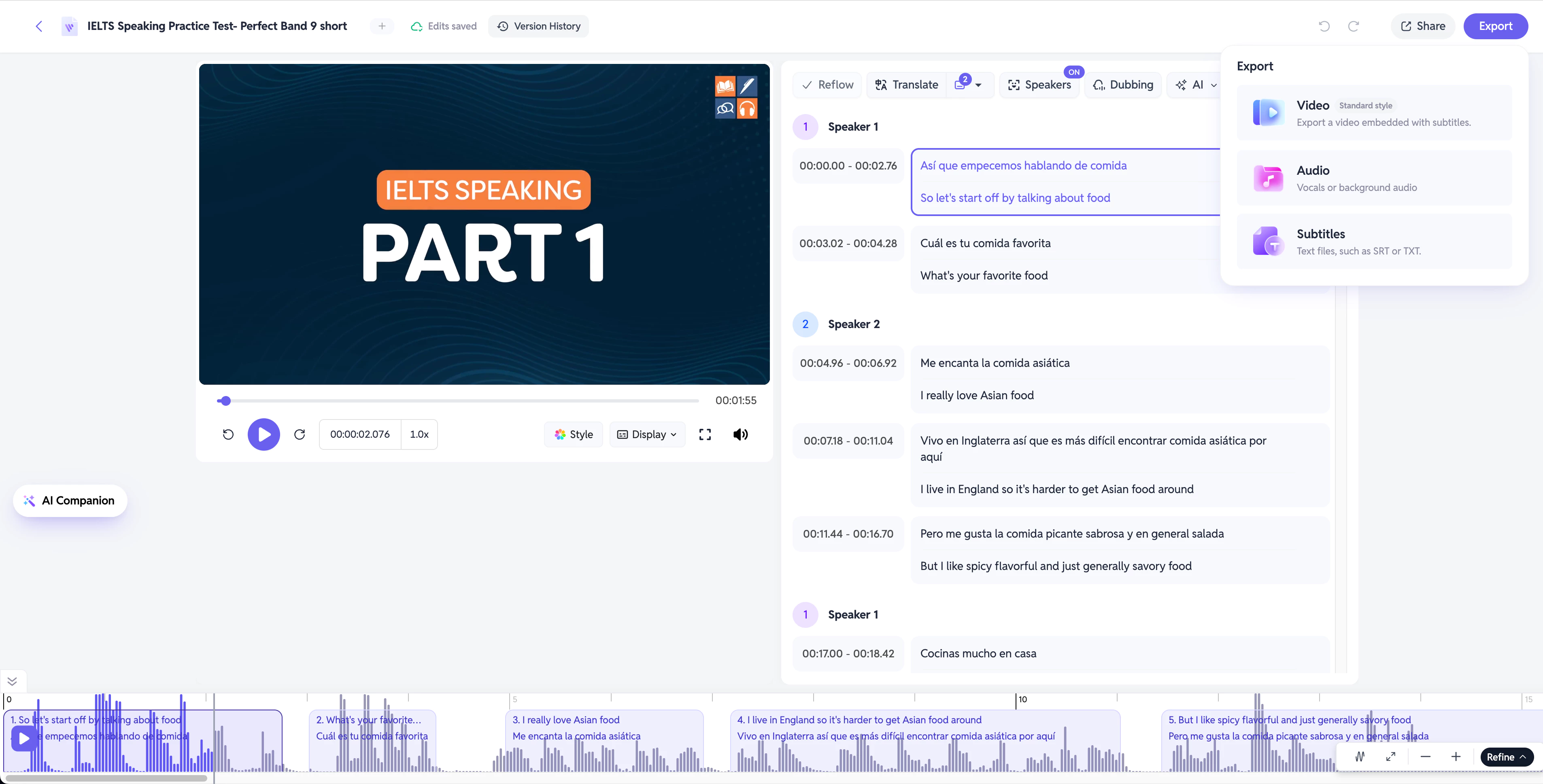
SubEasy provides two export options depending on your workflow.
Export Videos with Bilingual Subtitles
Choose Video if you'd like to export a finished video with translated subtitles already embedded.
SubEasy supports exporting bilingual subtitle videos, making it easy to publish multilingual content without any additional editing.
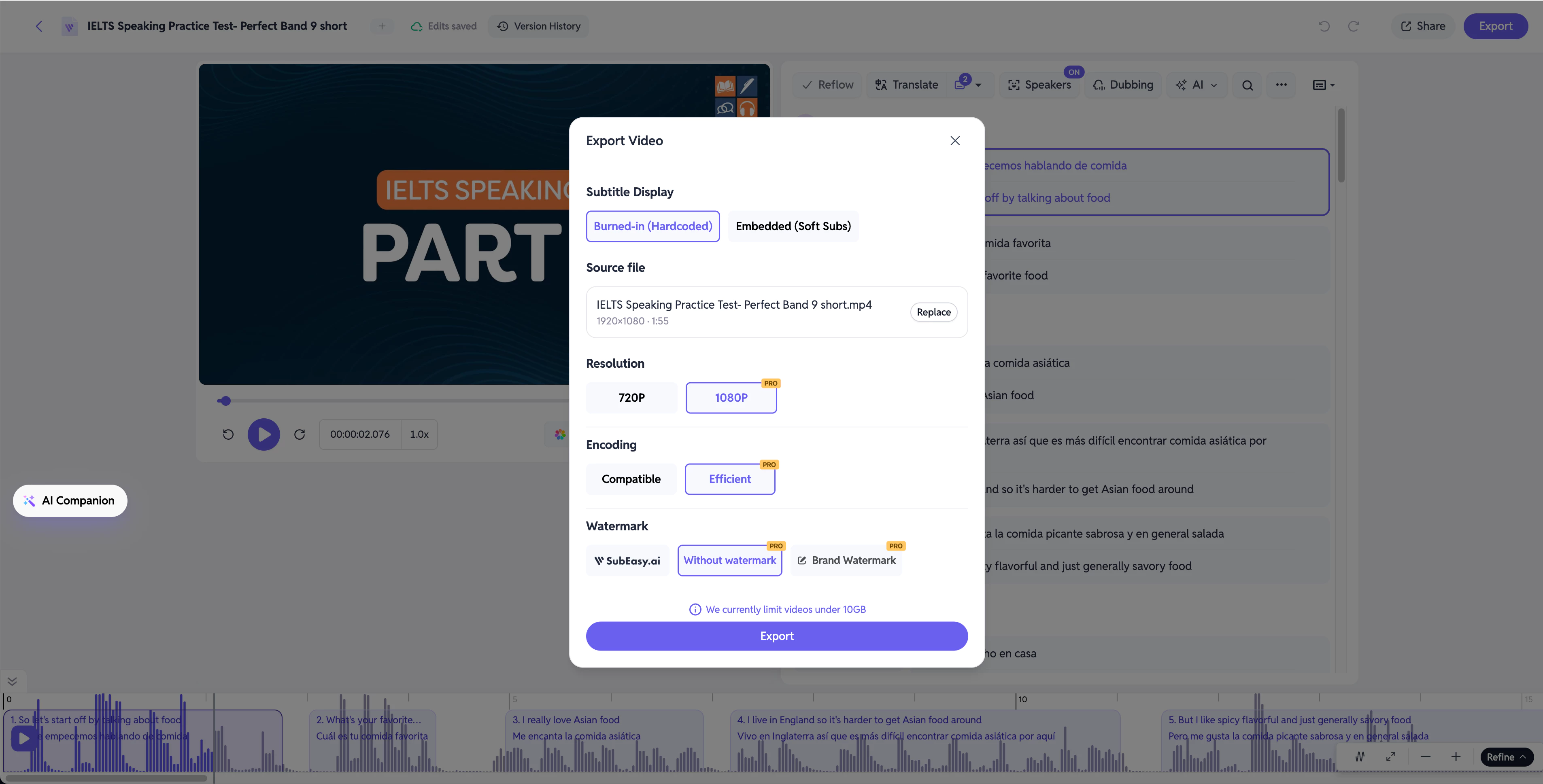
Before exporting, configure your preferred video settings according to your publishing requirements.
Once everything is ready, click Export to generate your final translated video.
Export Subtitle Files
If you plan to continue editing your project in professional video editing software, choose Subtitles.
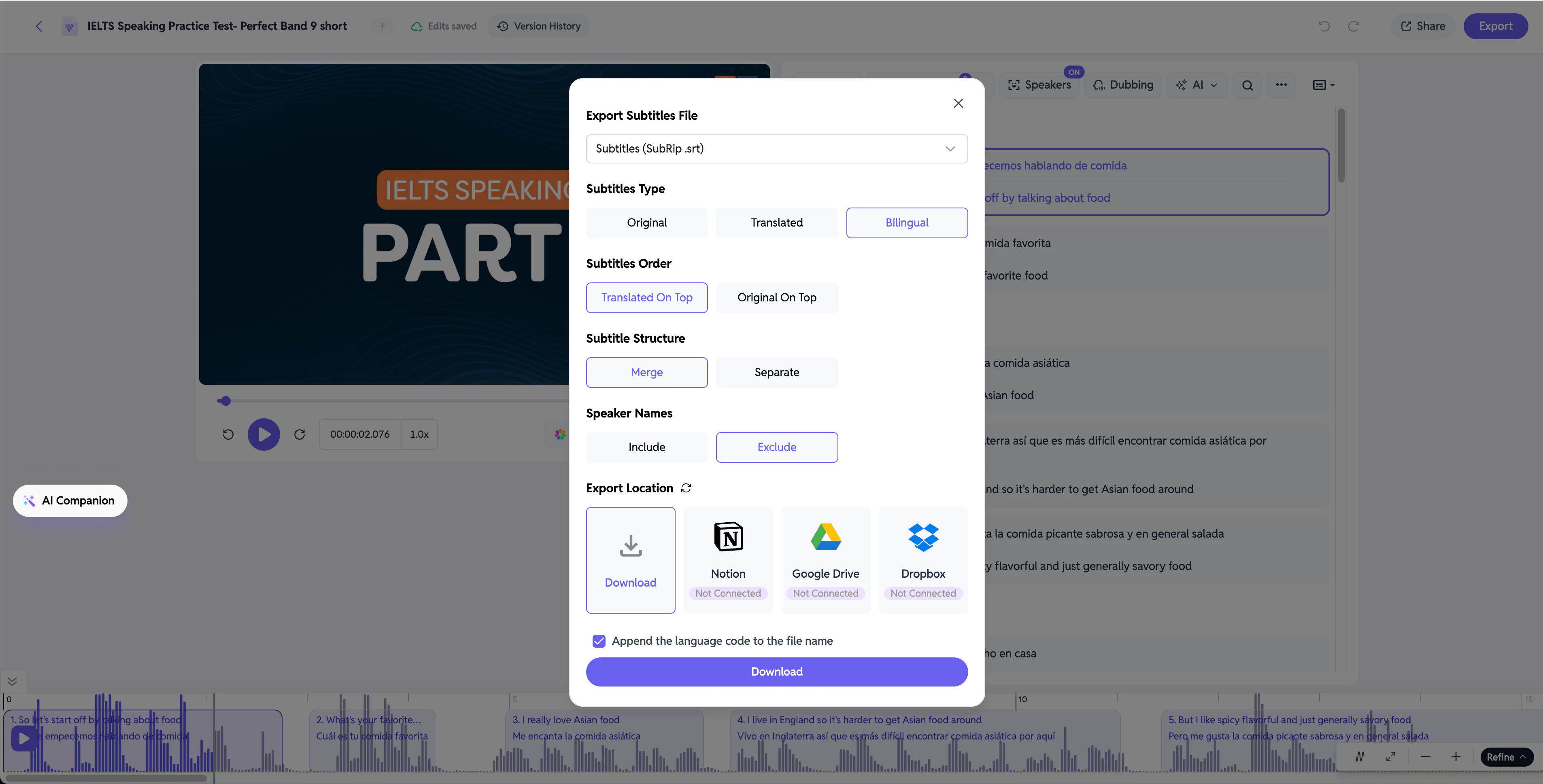
SubEasy allows you to export subtitle files in multiple formats, including:
- SRT
- VTT
- ASS
- TXT
- DOCX
- LRC
- CSV
These subtitle files can be imported into professional editing software such as:
- Adobe Premiere Pro
- DaVinci Resolve
- Final Cut Pro
This workflow gives you greater flexibility for further editing and post-production.
Conclusion: Translate Your Videos with SubEasy
From uploading your media file to exporting bilingual subtitle videos, SubEasy provides a complete AI-powered video translation workflow in one place.
Whether you're creating:
- YouTube videos;
- Podcasts;
- Online courses;
- Interviews;
- Social media content;
SubEasy helps you quickly translate your videos into multiple languages while maintaining accurate subtitles and a smooth editing experience.
Start your first AI translation project with SubEasy today and make your content accessible to audiences around the world.