

Need to add extra commentary, explanations, or a story to your video? Adding an AI voice-over (also known as AI narration) is the perfect way to supplement your existing content without replacing your original audio.
This tutorial will show you how to use SubEasy's "Dubbing" feature to find silent gaps in your video and add text-to-speech (TTS) narration into them.
Step 1: Find Gaps for Your AI Voice-Over
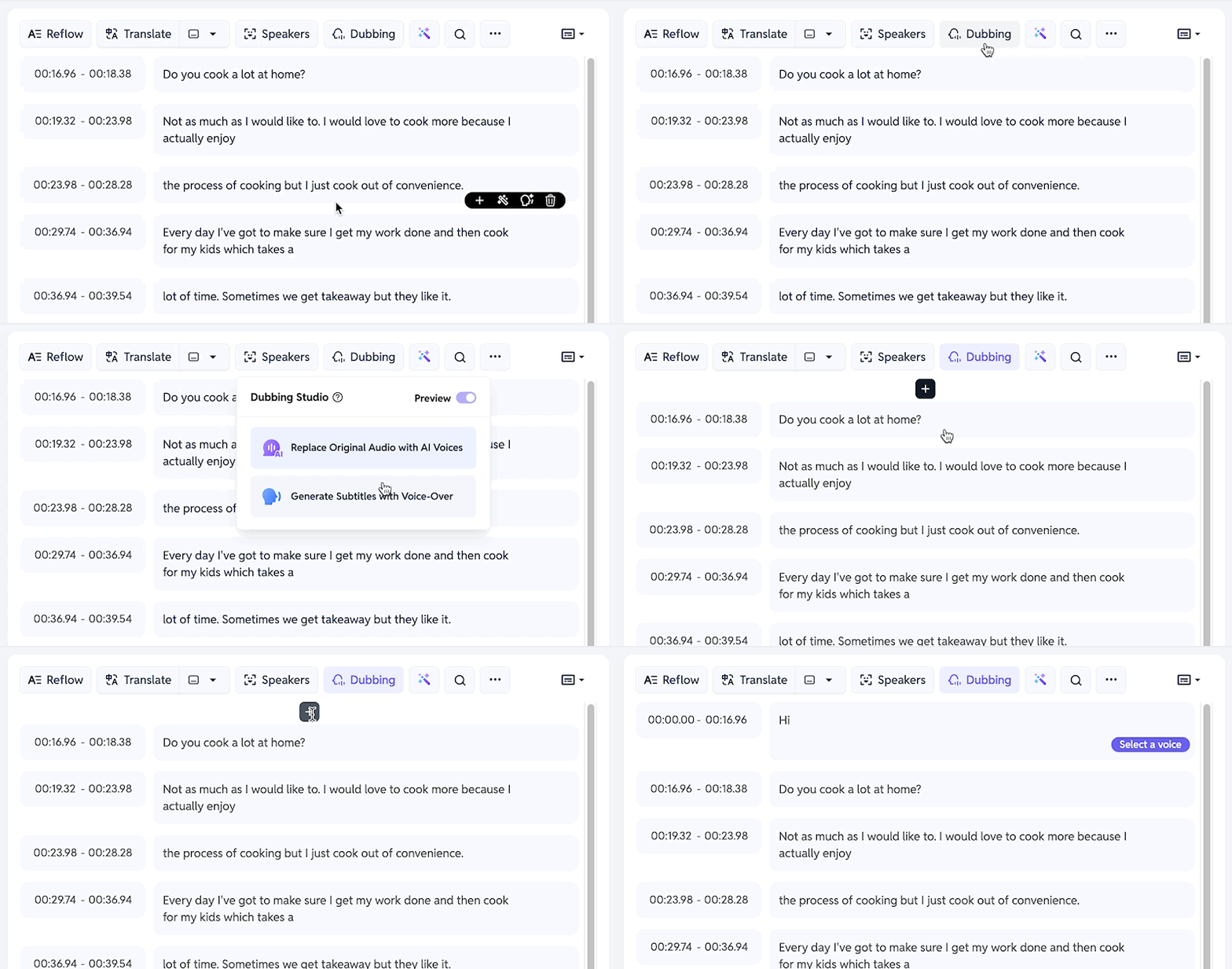
After uploading and transcribing your video, click on [Dubbing] and select the [Generate Subtitles with Voice-Over] option.
The system will automatically scan your video and identify gaps between existing dialogue or subtitles. A black plus-sign icon will appear in any gap large enough to add new narration.
Step 2: Add Your Narration Text
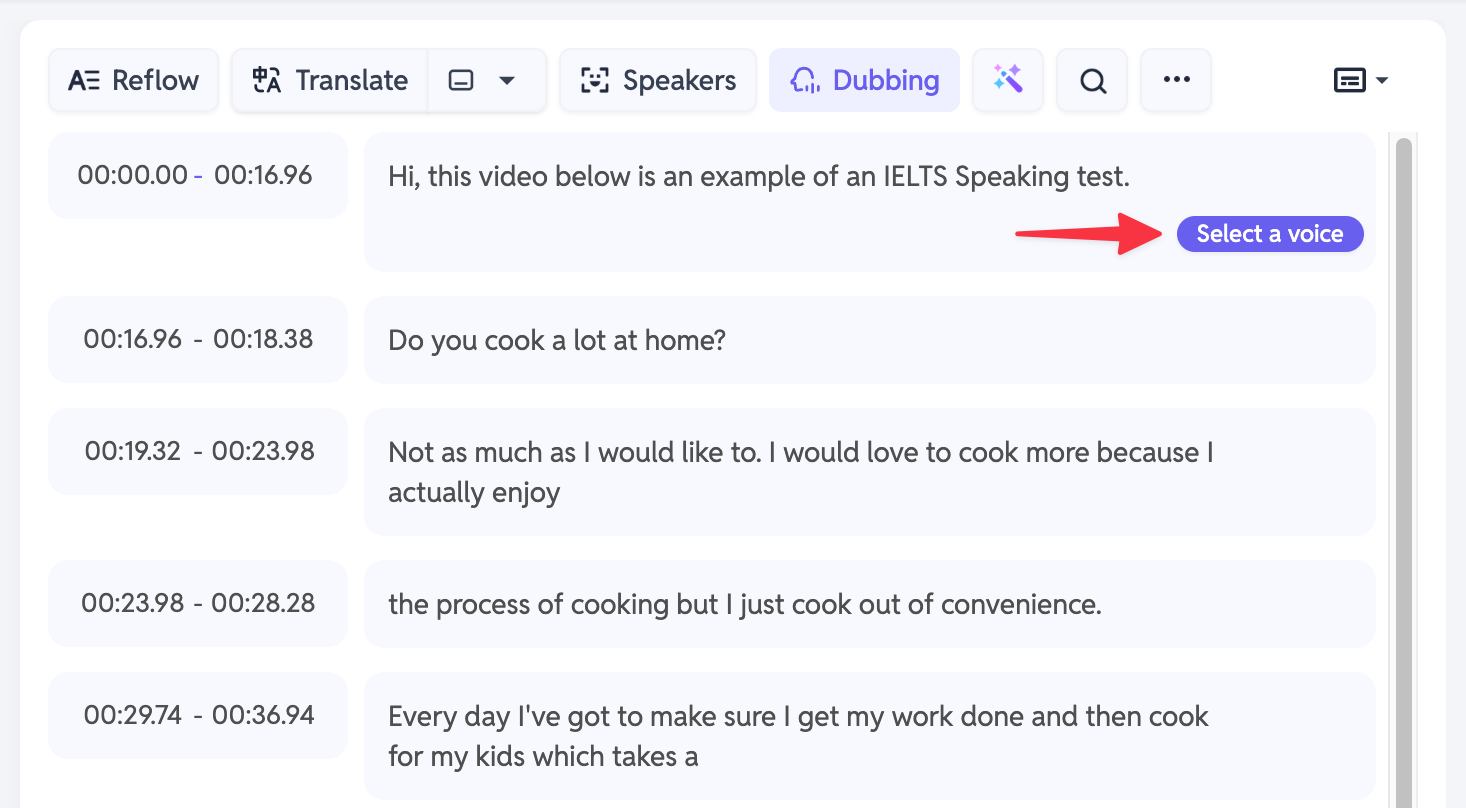
Click the plus icon, and a text box will appear. Type the narration (voice-over text) you want to add in this spot.
Don't worry if the text seems long. The system will automatically adjust the new subtitle's duration to fit the length of your text.
Note: Be aware that if the time gap is very short and the text is very long, it may result in a very fast speech rate.
Once you're done typing, click [Select a Voice].
Step 3: Choose Your AI Narrator's Voice
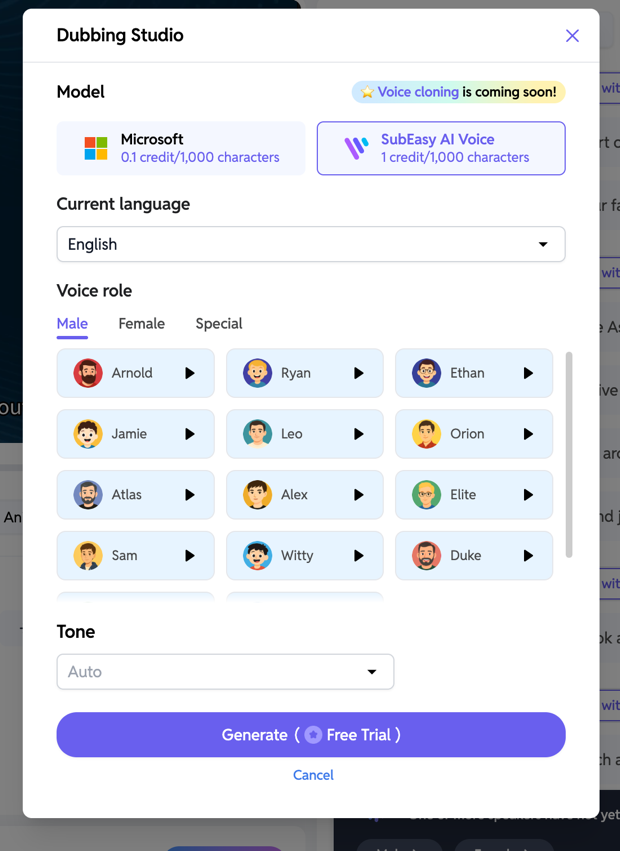
You have two models to choose from for your AI narrator:
- Microsoft Model: Offers fewer voices but costs fewer credits.
- SubEasy AI Voice Model: Offers more voices that sound more human-like, but costs more credits.
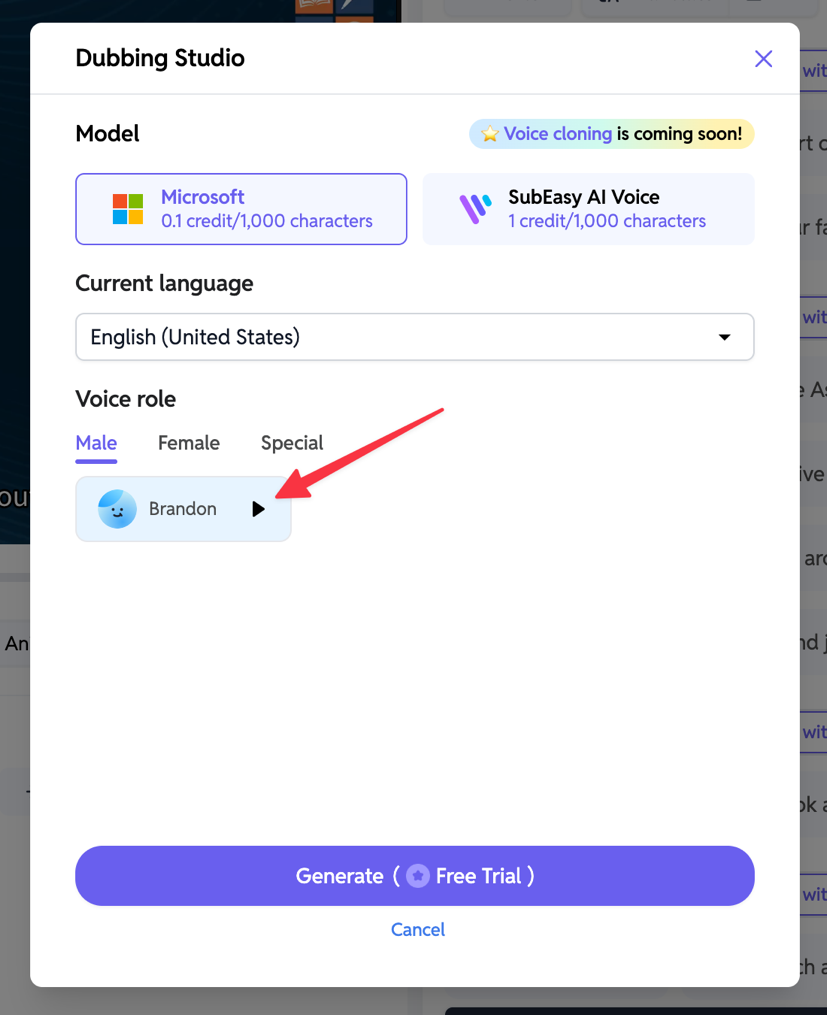
Both models have male and female voices. The SubEasy AI Voice model also includes more distinctive 'Special' voices to choose from. You can preview any voice by clicking the play button next to its name.
Step 4: Preview the AI Voice Clip
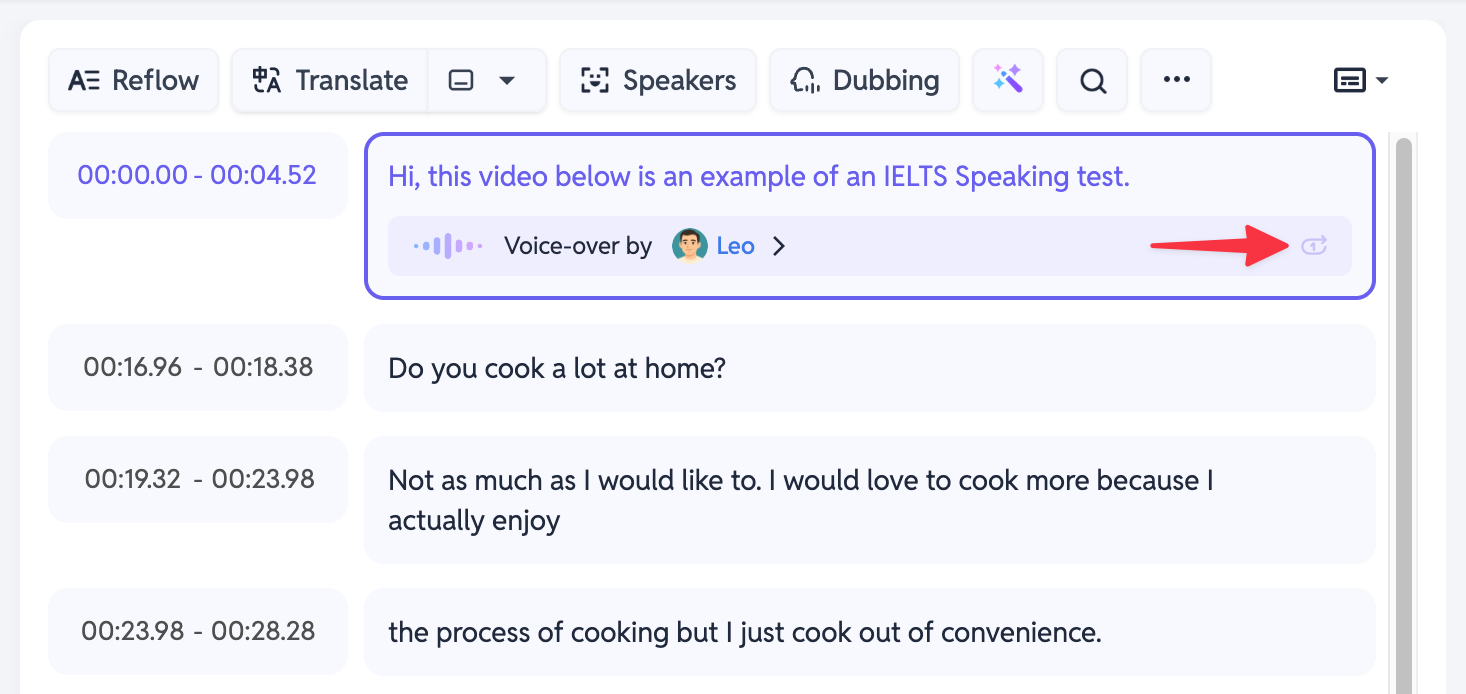
After the narration for a clip is generated, you can click the play button next to it to preview how the AI voice-over sounds.
Step 5: Preview the Full Video with Narration
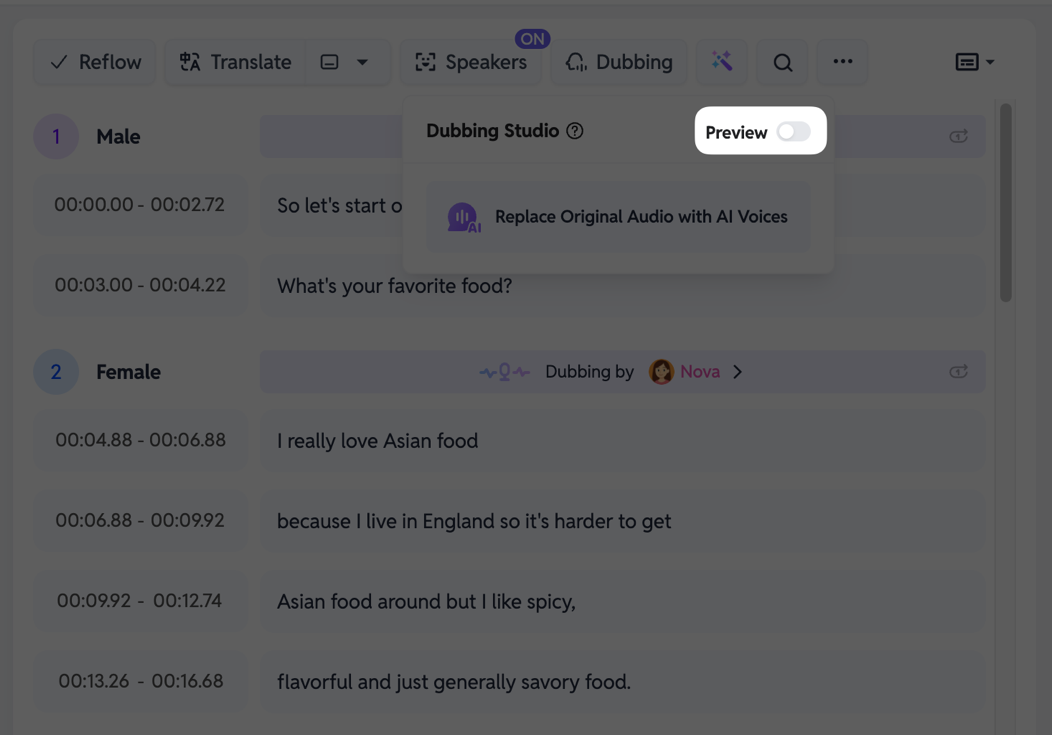
If you want to preview the entire video with the new narration, click [Dubbing] and toggle the [Preview] option to "On." (Please be patient, as it may take a long time to load the first time.)
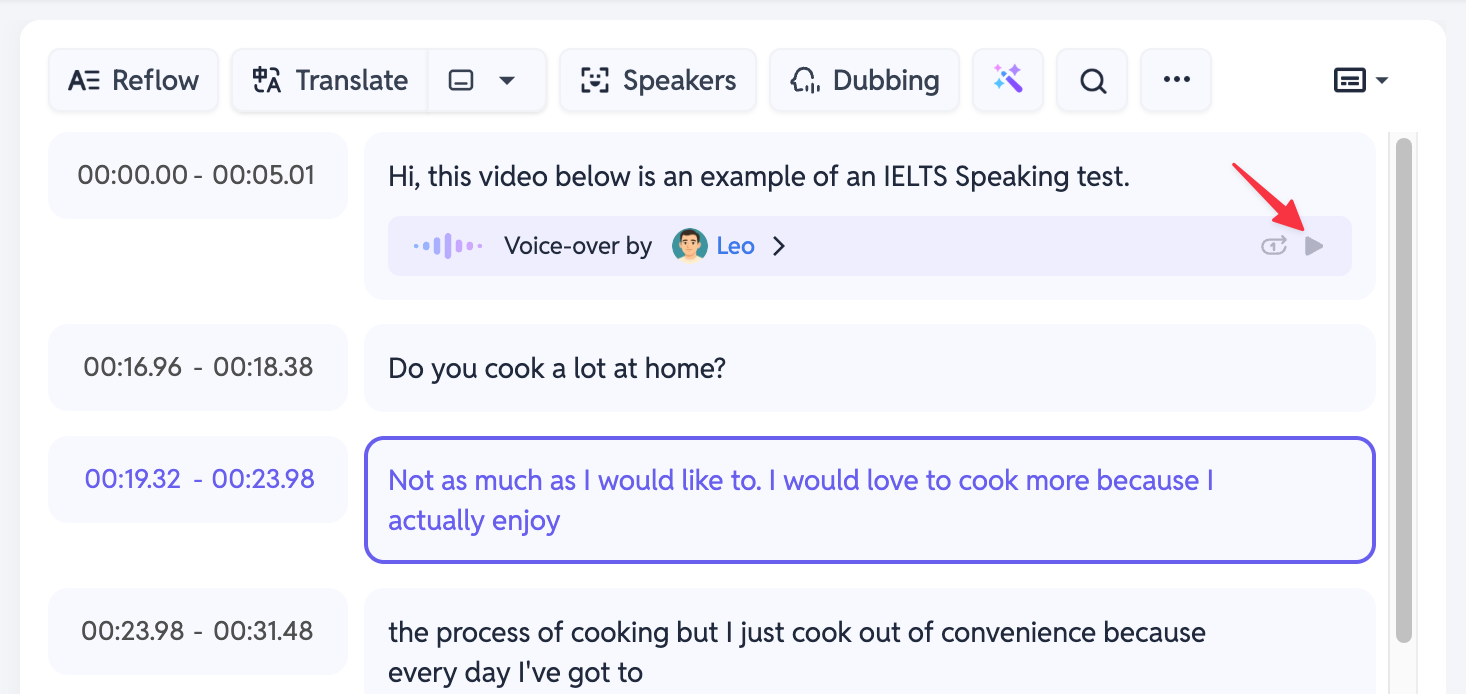
Once loaded, you can play the video to hear how the AI narration fits in with your original video audio.
Step 6: Export Your Final Narrated Video
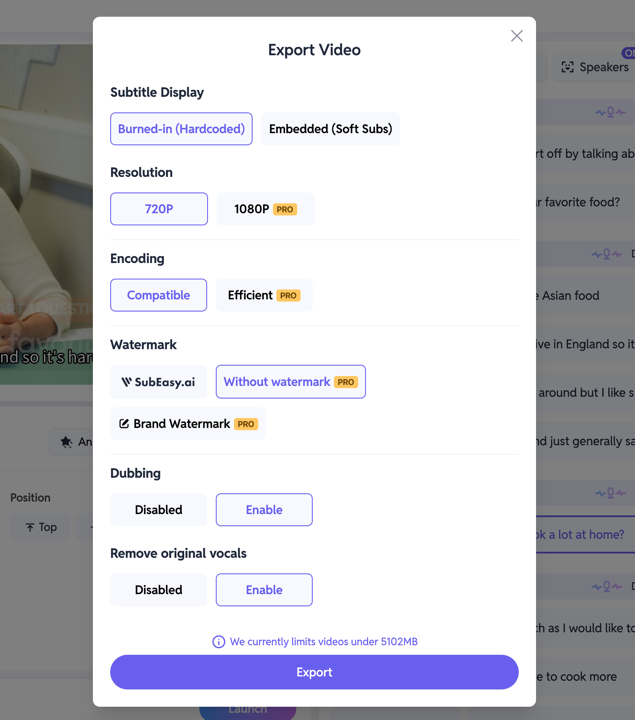
Once you confirm the AI narration is to your satisfaction, click [Export].
You can then export the video according to your needs. To ensure your new narration plays over (or in the gaps of) your existing audio, we recommend selecting [Disable] for the [Remove original vocals] option.
Learn More About SubEasy's Audio Features
That's our guide on using SubEasy to add AI narration to your videos! It's an easy way to provide more context, add explanations, or give your content more value.
If you'd like to learn more about SubEasy's other powerful audio features, check out our other guides: