

Need to replace the audio in your video with an AI voice? Whether you're a content creator looking for high-quality AI dubbing or to replace original audio, this tutorial will show you how to use SubEasy's "Dubbing" feature. We'll guide you through the entire video dubbing process, from transcription to the final export.
Step 1: Identify Speakers for Accurate AI Dubbing
- If your video has only one speaker, you can skip this step.
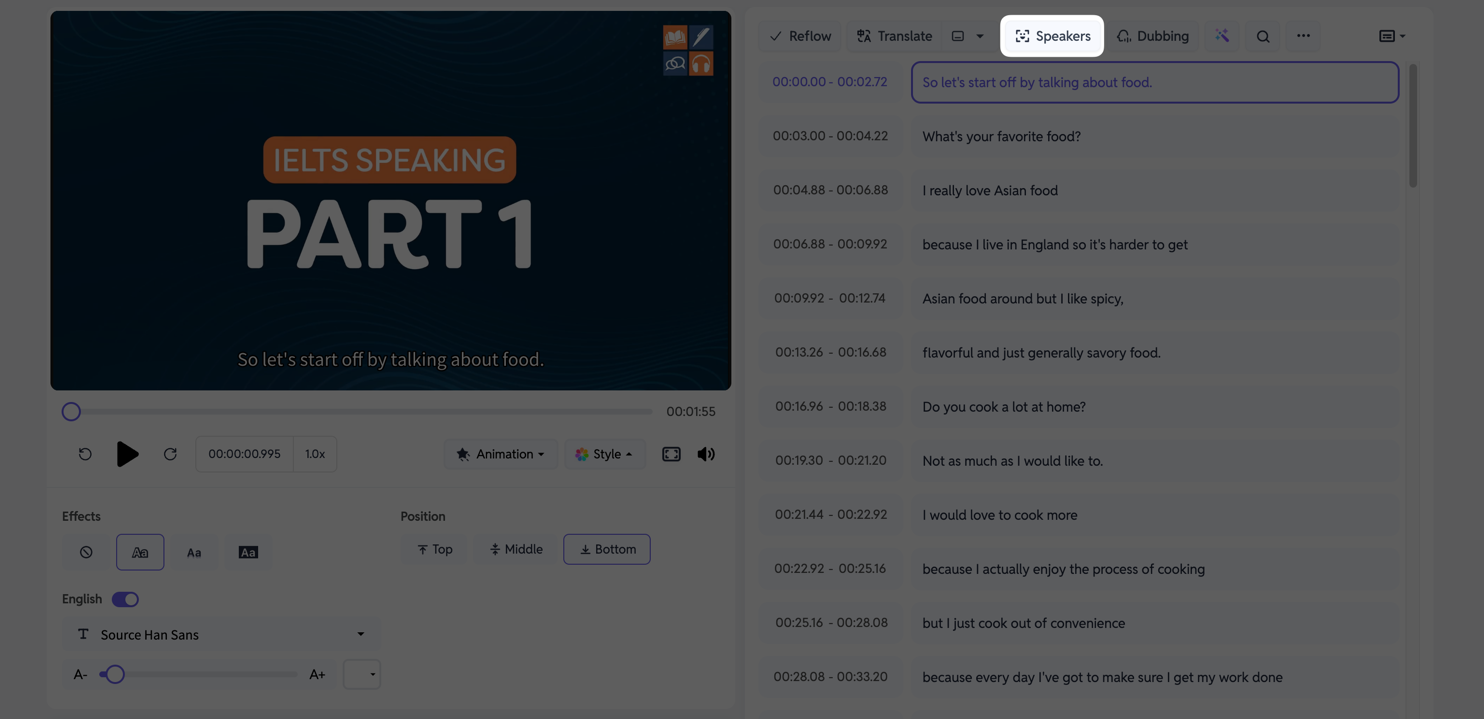
After your video transcription is complete, click on Speakers. The system will automatically analyze and tag the different speakers in your video. This allows you to batch-process all dialogue for a specific speaker later.
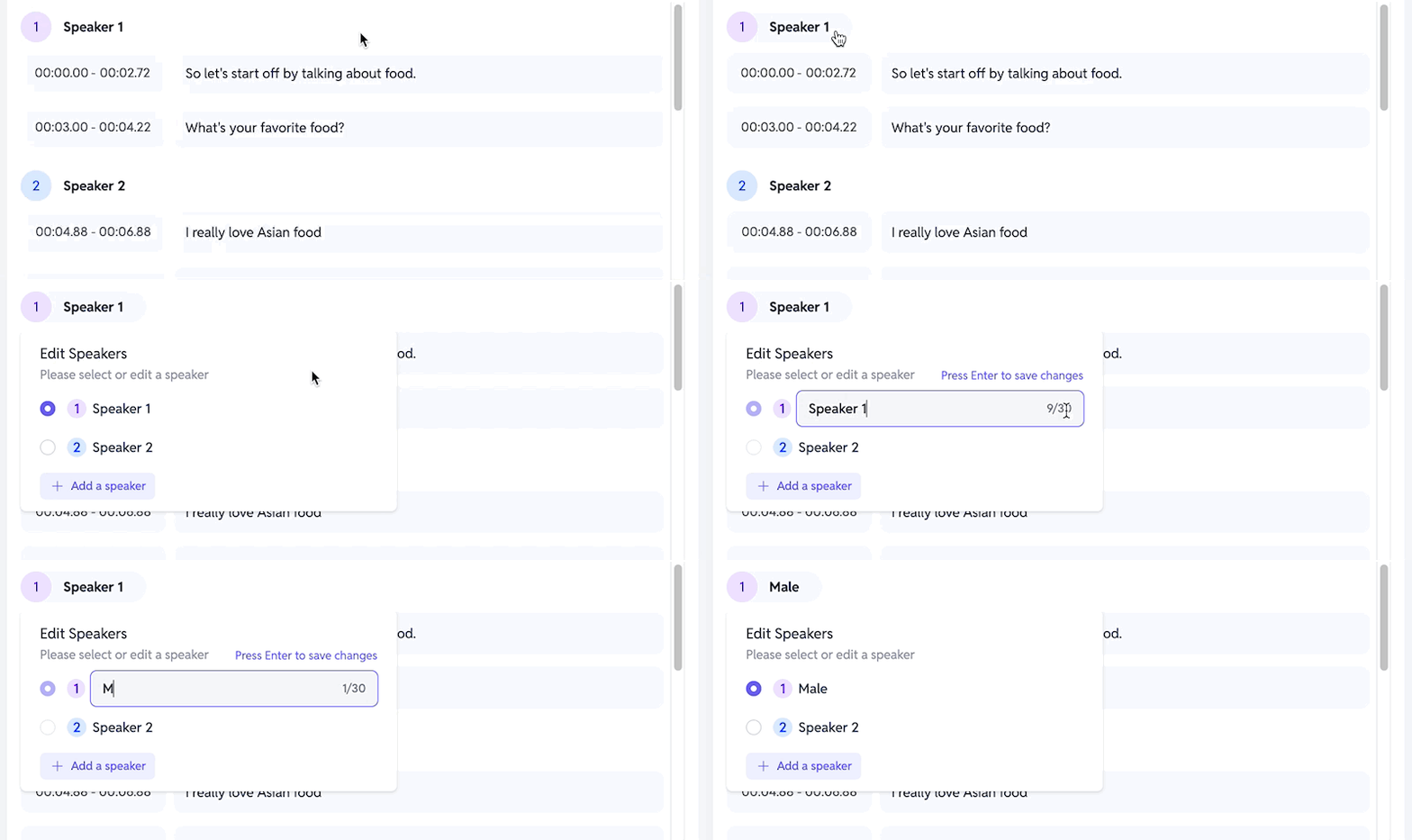
Once tagged, you can also click on Speaker 1 (or a similar label) to rename the speaker for your own reference.
Step 2: Choose and Assign Your AI Voice (TTS)
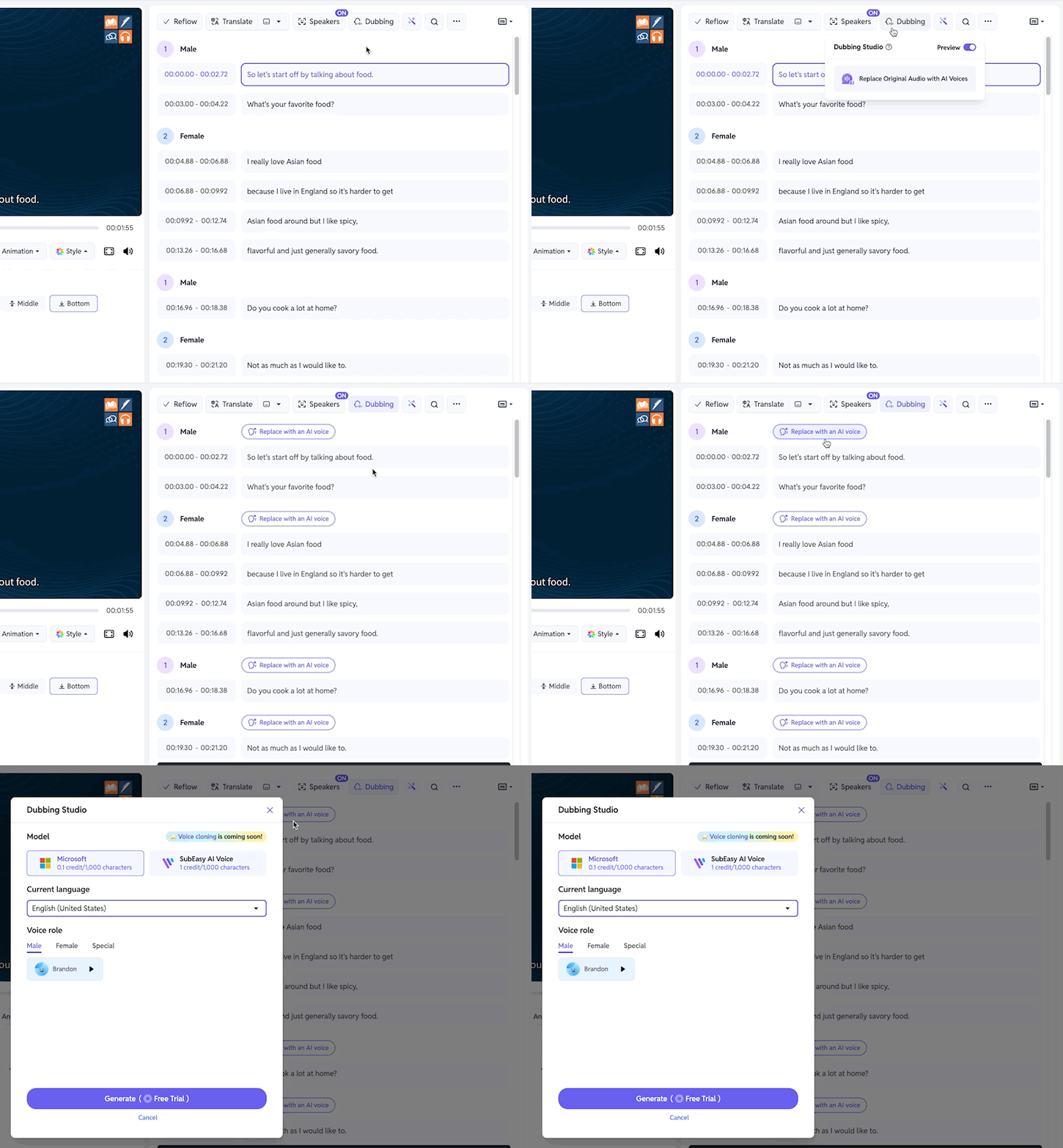
Click the Dubbing button and select Replace Original Audio with AI Voices to open the voice selection panel. You can assign a different voice to each speaker.
You have two models to choose from, with both male and female voices available:
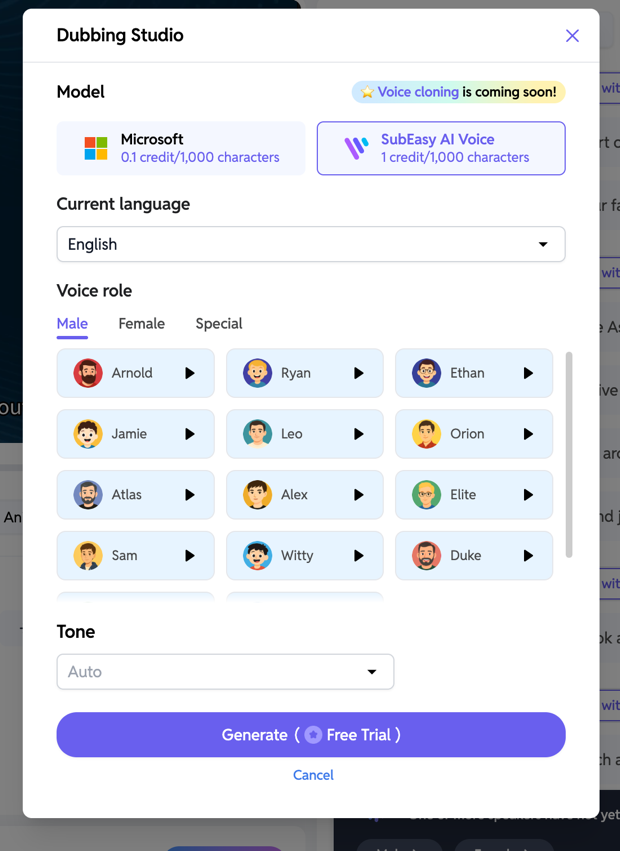
- Microsoft Model: Offers fewer voice options but consumes fewer credits.
- SubEasy AI Voice Model: Offers more voices that sound more human-like, but costs more credits. This model also includes more distinctive 'Special' voices to choose from.
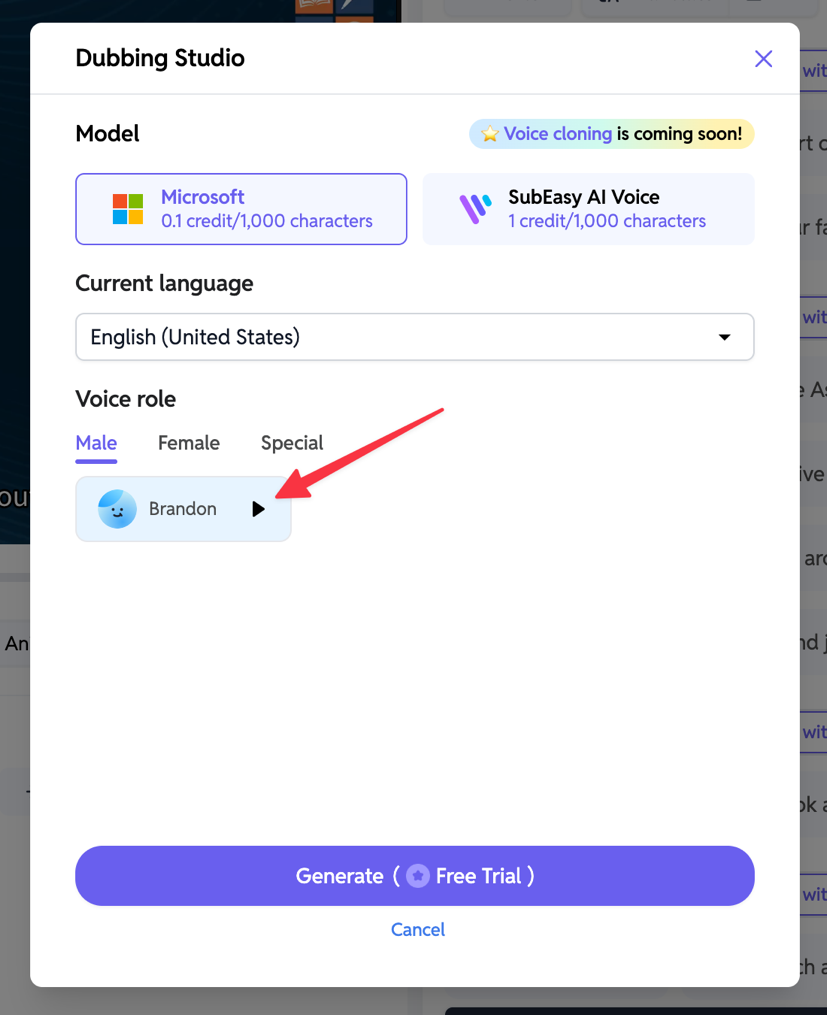
You can preview any voice by clicking the play button next to the voice name.
Step 3. Preview Single-Segment Audio
![SubEasy AI Dubbing - Identify Speakers] (https://assets.subeasy.ai/blog-image/subeasy-ai-dubbing-guide/Dubbing6.png)
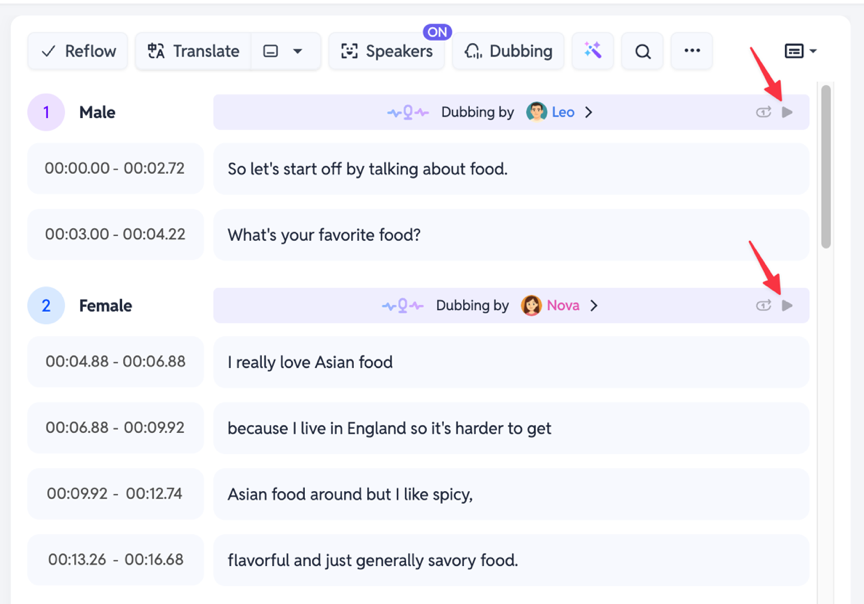
After applying a voice to a segment or speaker, you can click the play button next to that specific audio entry to quickly preview the AI dubbing for that line.
Step 4. Preview the Full Video
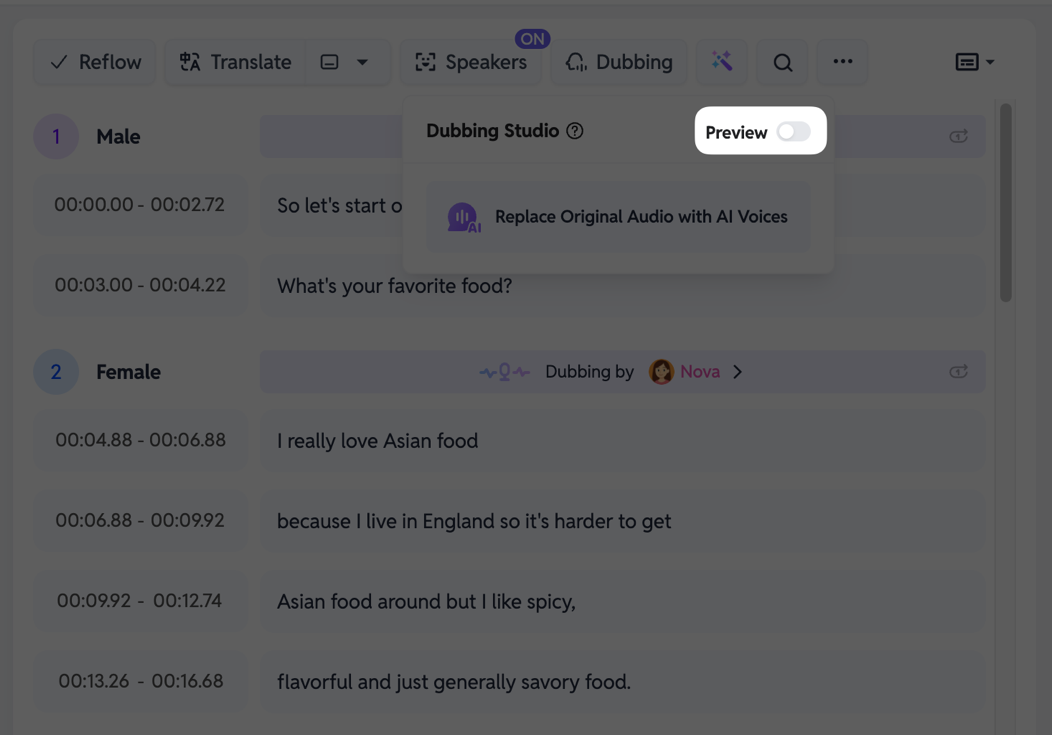
To preview the entire dubbed video, click the Dubbing menu and toggle on the Preview option.
- Please note: The first time you load the preview, the system needs time to synthesize the full audio. Please wait patiently.
Once loaded, click the main play button on the video player, and SubEasy will play the complete video with the new AI voices.
Step 5: Export Your Final AI Dubbed Video
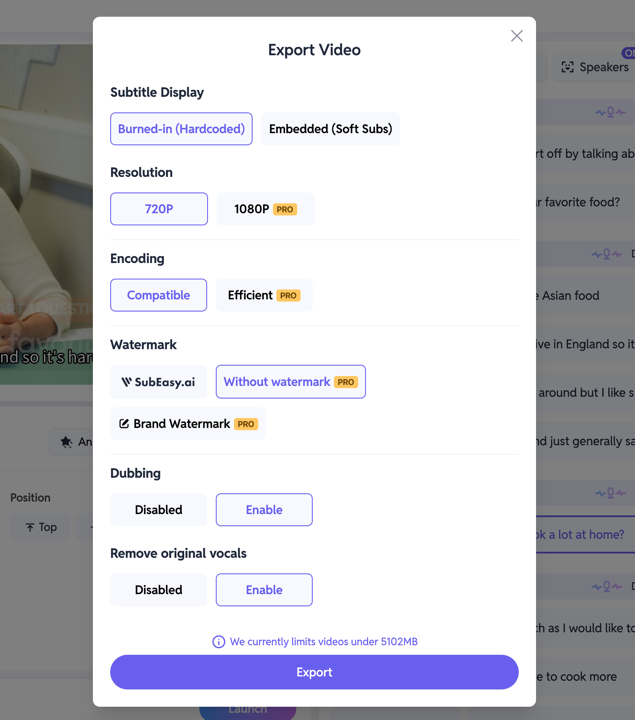
When you are satisfied with the dubbing, click Export. In the export settings, we strongly recommend you check the Remove original vocals option and set it to Disable. This ensures your final video contains only the AI dubbing.
That's it for our guide on using SubEasy's Dubbing feature to voice-over your videos. If you'd like to learn more about SubEasy's dubbing capabilities, feel free to read our articles on Dubbing Your Translated Videos and Adding AI Narration to Your Videos.