

Want to translate your video into other languages and replace the original audio with an AI voice? This process, often called AI video translation or video localization, is perfect for reaching a global audience.
This tutorial will show you how to use SubEasy's "Dubbing" feature to both translate your video's subtitles and then dub the translated text with a high-quality AI voice, completely replacing the original audio.
Step 1: Translate Your Video Subtitles
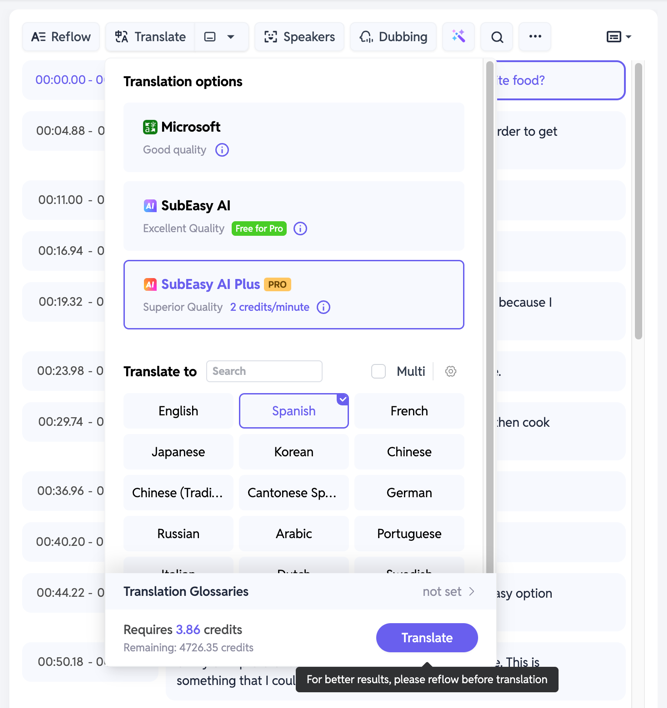
After uploading and transcribing your video, you will have the original language subtitles. Now, you need to translate them. You can choose from three different AI translation models:
- Microsoft: Provides decent translation quality. There might be some ambiguities, but it's a good choice if your only requirement is to understand the content for yourself.
- SubEasy AI: Offers excellent translation quality with high accuracy. This is the recommended model if you plan to show the video to an external audience.
- SubEasy AI Plus: Delivers exceptional translation quality with extremely high accuracy, comparable to professional human translation. Choose this model if you have the highest requirements for your translation results.
Step 2: Identify Speakers in the Video
(You can skip this step if your video only has one speaker.)
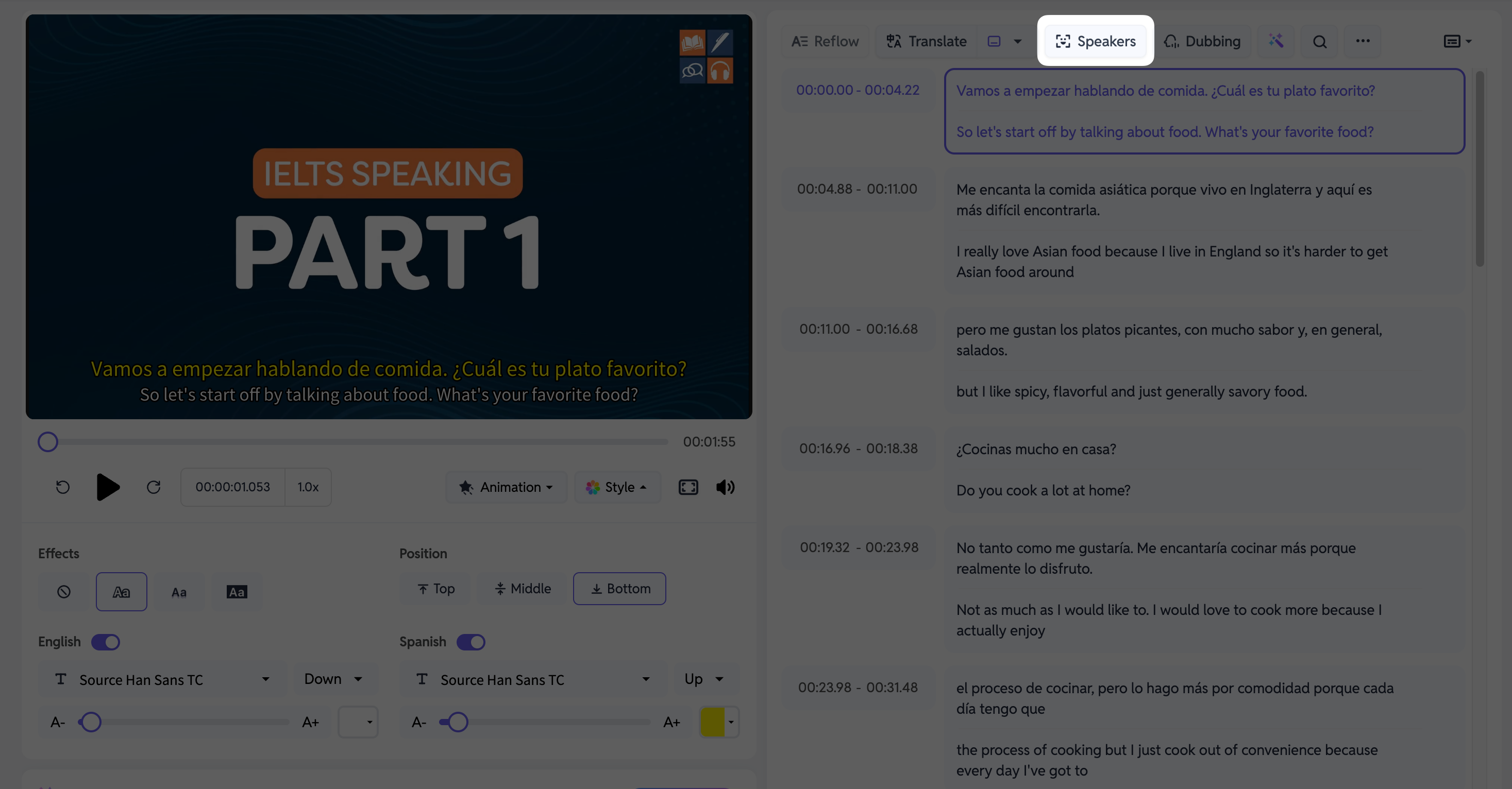
After translating your video, click on [Speakers] at the top. After a short wait, the system will automatically identify and tag the speakers in the video. This makes it easier to batch-process a specific speaker's lines later (e.g., assign a specific AI voice to each person).
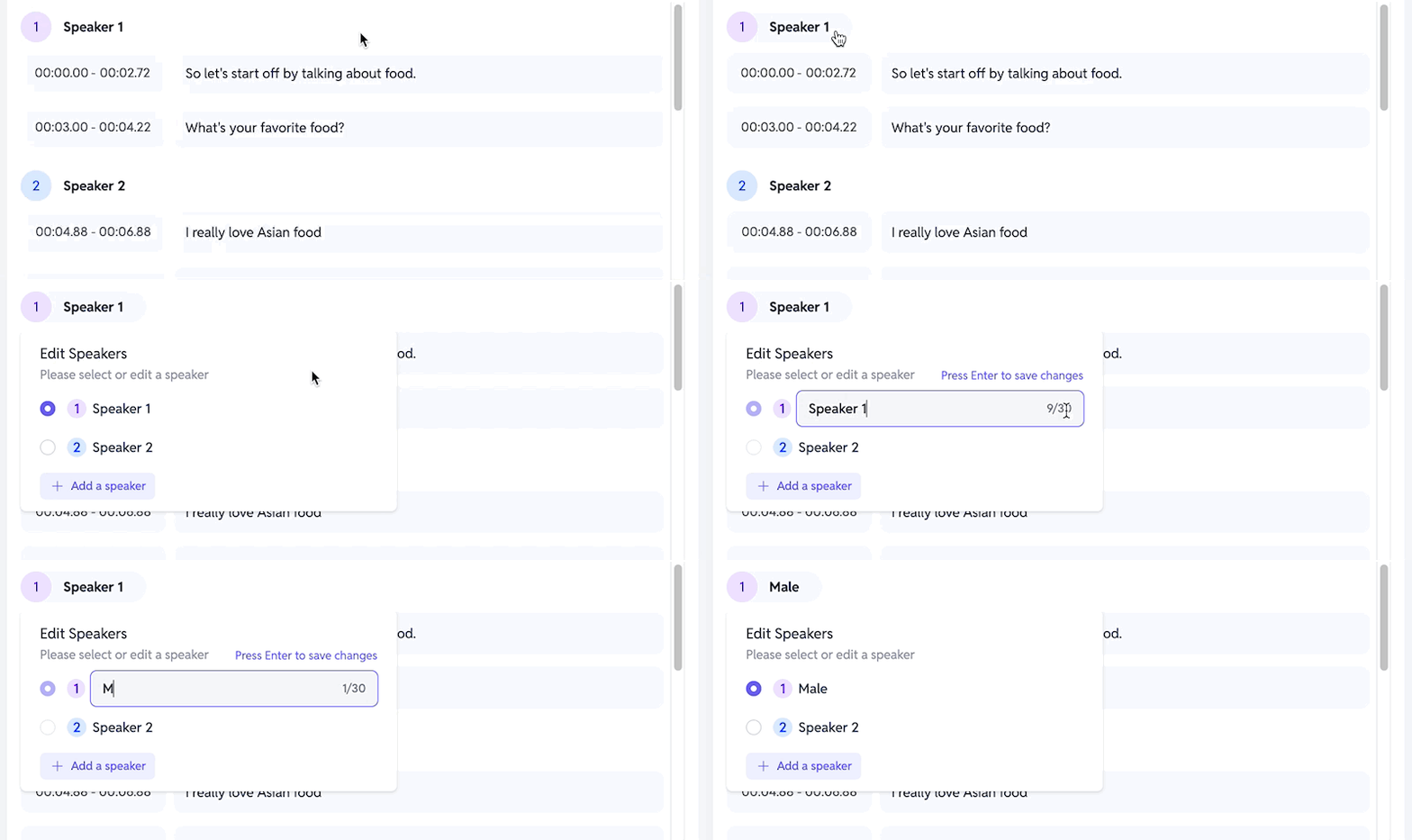
Once tagging is complete, you can also click on [Speaker 1] to rename the speaker for your own convenience.
Step 3: Assign AI Voices to the Translated Text
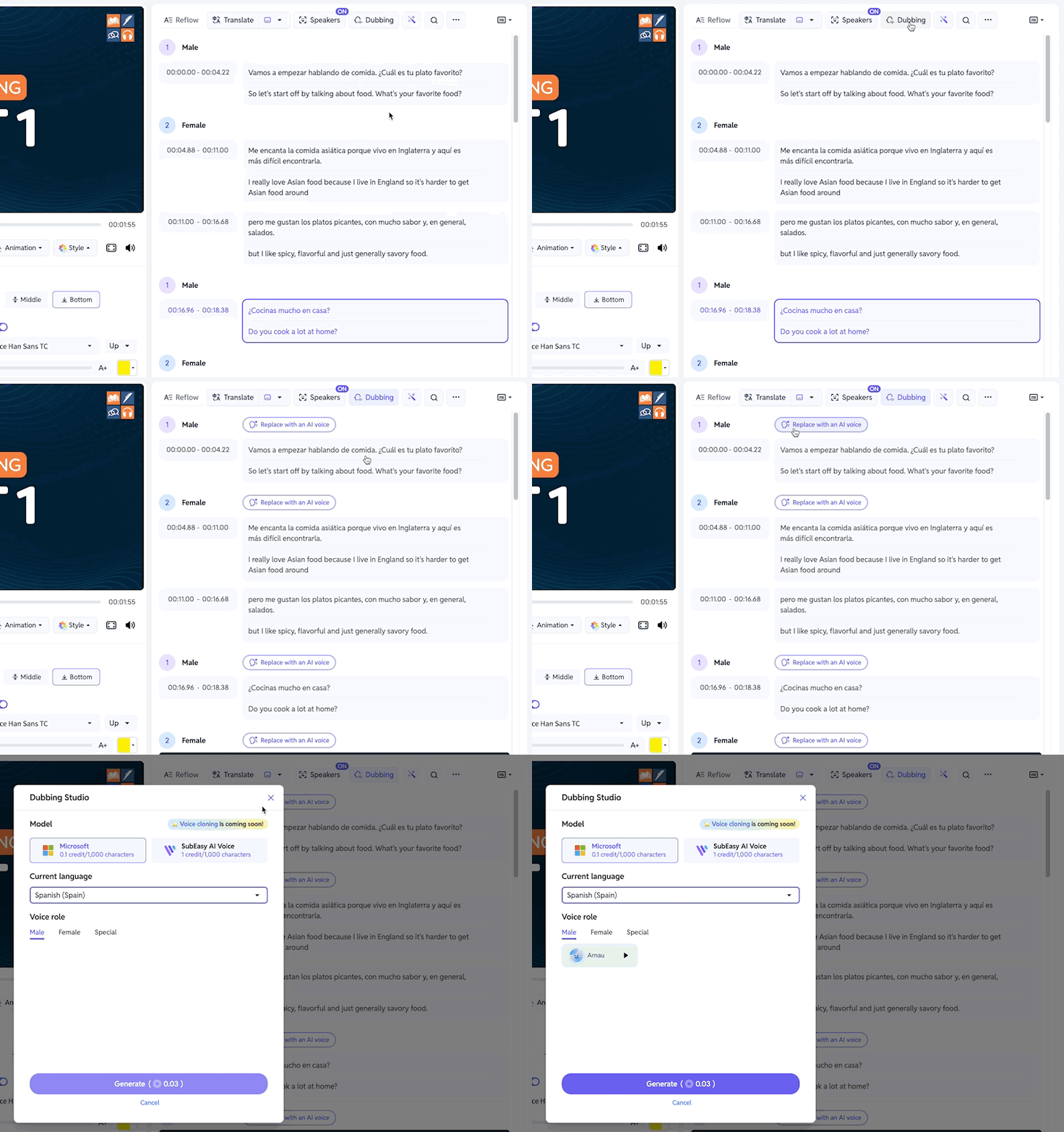
Click the [Dubbing] button and select [Replace Original Audio with AI Voices].
Here, you can assign an AI voice to each speaker you identified. This allows you to batch-dub all of a specific speaker's translated lines at once.
You have two voice models to choose from:
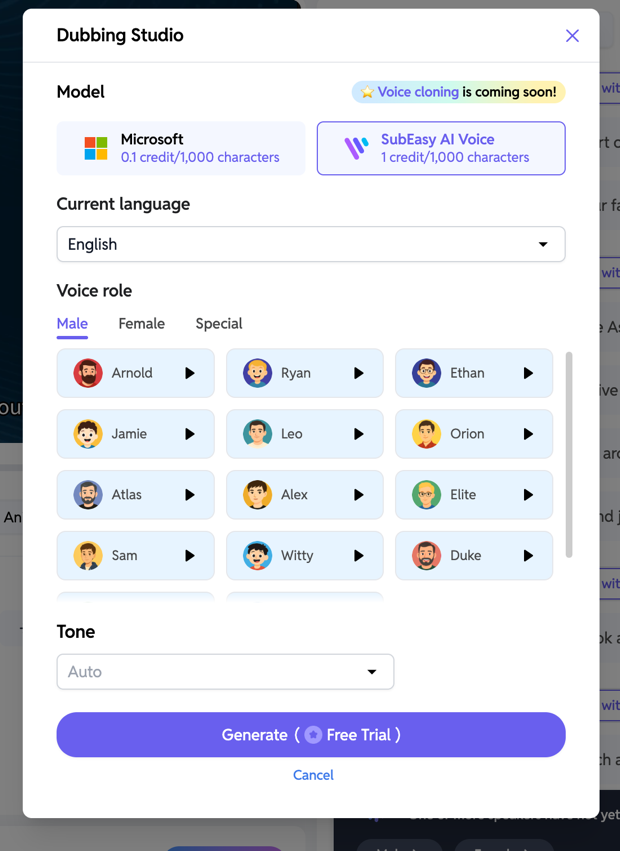
- Microsoft Model: Offers fewer voices but costs fewer credits.
- SubEasy AI Voice Model: Offers more voices that sound more human-like, but costs more credits.
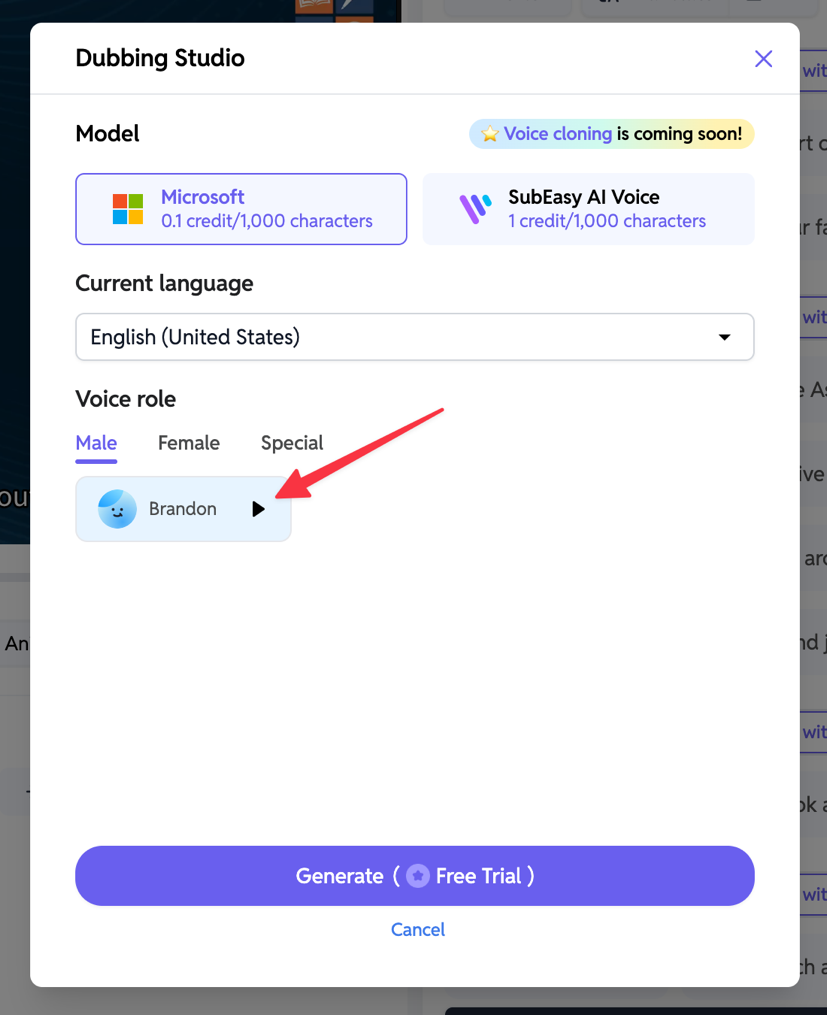
Both models have male and female voices. The SubEasy AI Voice model also includes more distinctive 'Special' voices to choose from. You can preview any voice by clicking the play button next to its name.
Step 4: Preview the AI Voice Clip
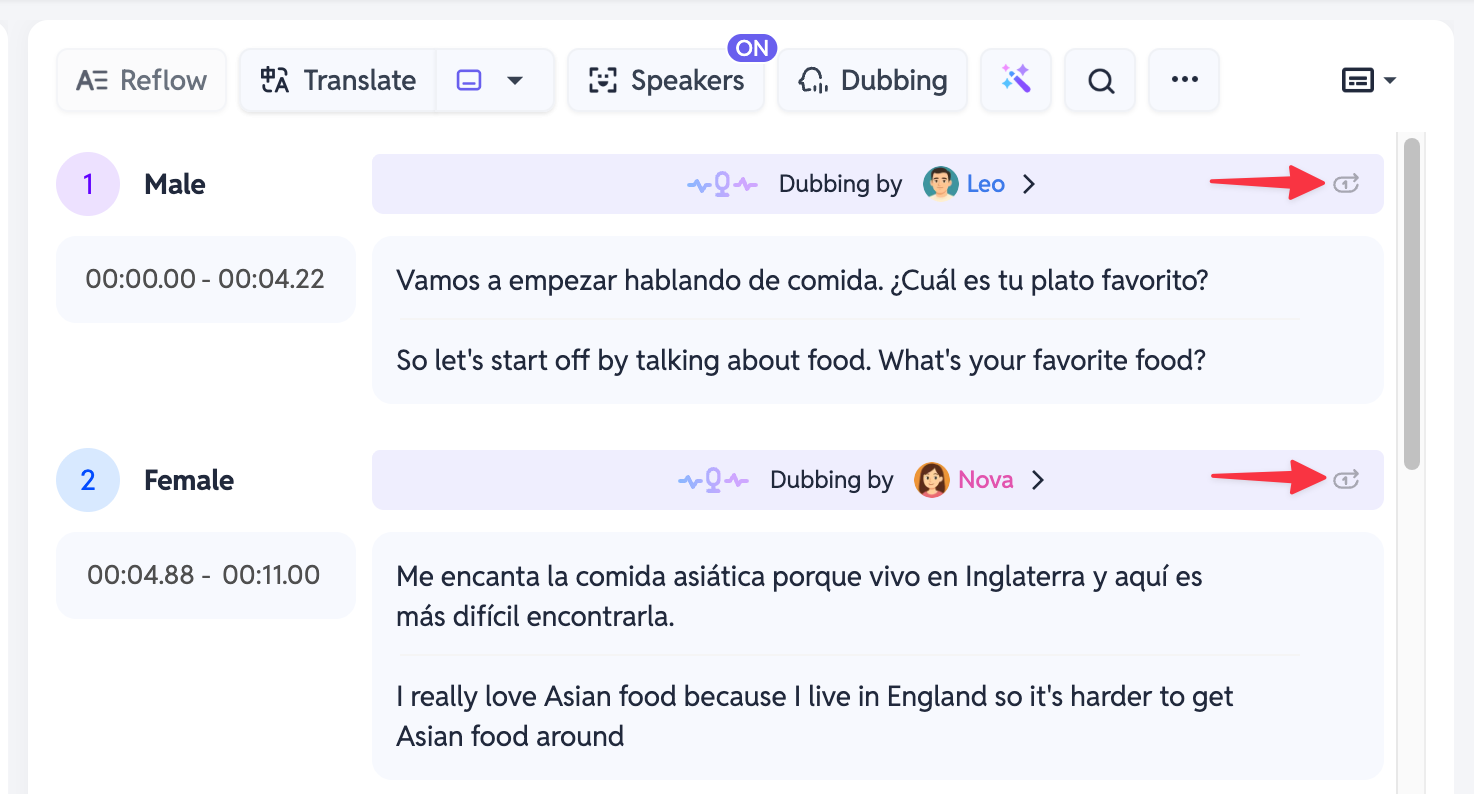
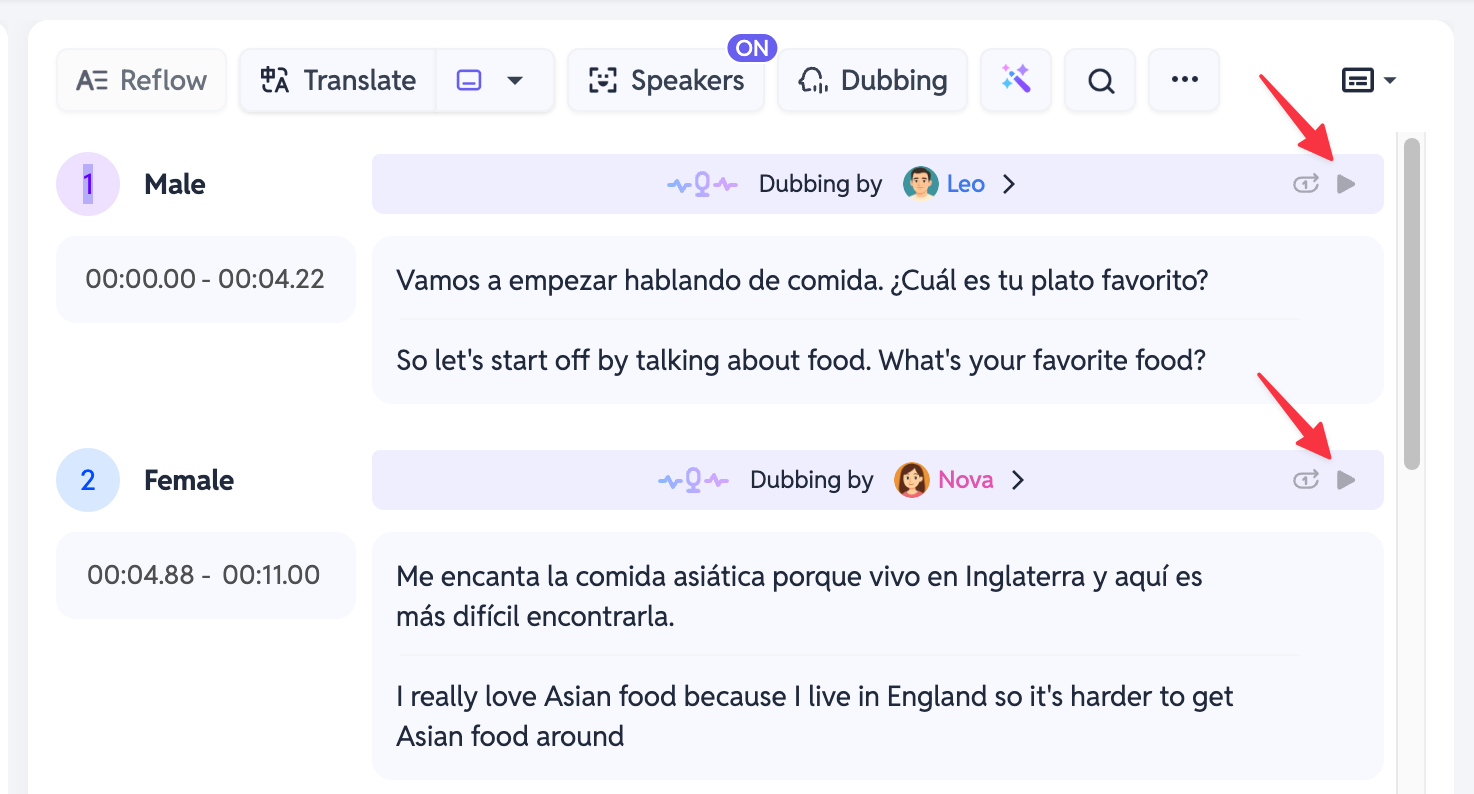
After the dubbing for an individual clip is complete, you can click the play button next to it to preview the AI audio effect for that specific line.
Step 5: Preview the Full Translated Video
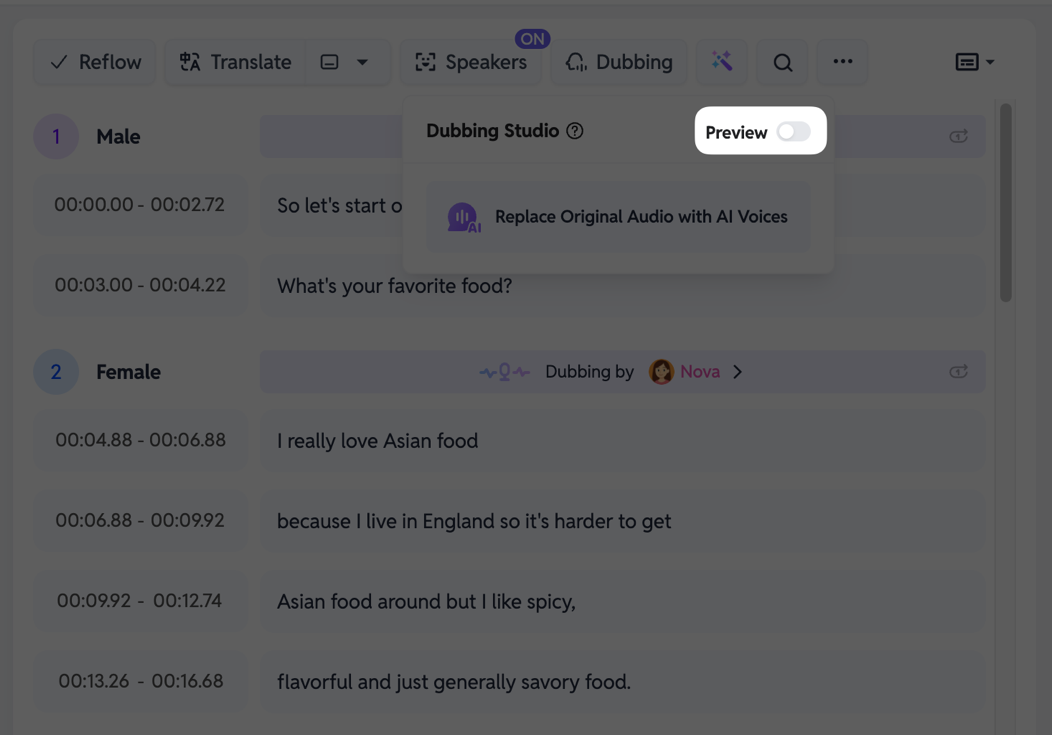
If you want to preview the entire, fully dubbed video, click [Dubbing] and toggle the [Preview] option to "On." (Please be patient, as it may take a long time to load the first time.)
Once loading is complete, you can play the video preview to see the final result with the translated AI voices.
Step 6: Export Your Translated and Dubbed Video
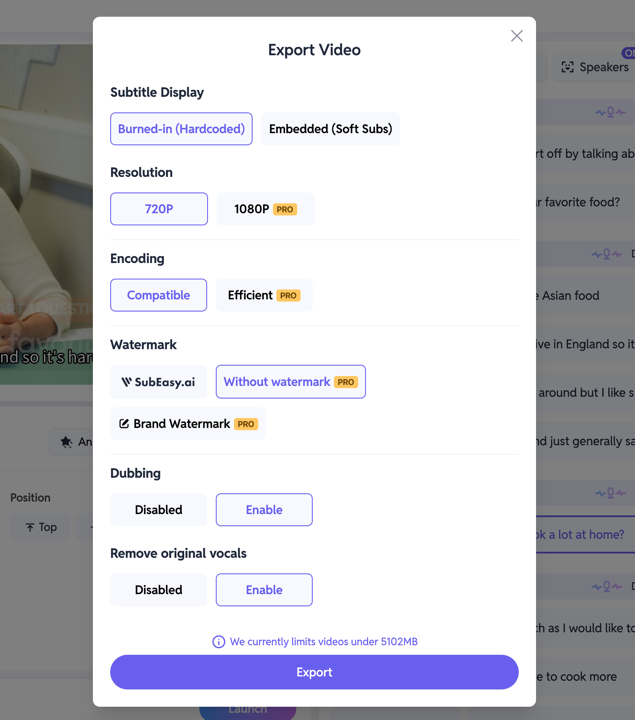
Once you confirm the AI dubbing meets your expectations, click [Export].
You can then export the video according to your needs. For the [Remove original vocals] option, we strongly recommend selecting [Disable] to ensure only the new AI voices are heard.
Learn More About SubEasy's Audio Features
That's our complete guide on how to translate and dub your video using SubEasy. AI video translation is a powerful tool for global content creators.
If you'd like to learn more, check out our other guides: